How to split a PDF
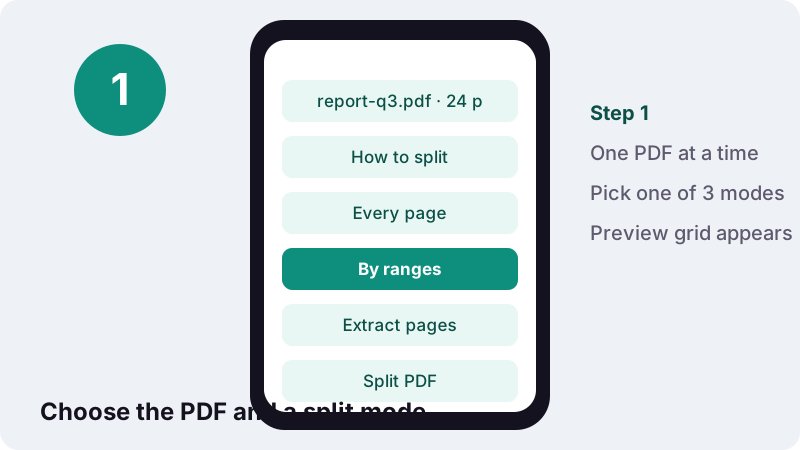
- Choose a PDF. Tap Choose a PDF or drop one file onto the box. A preview grid of its pages appears.
- Pick a mode. Select Every page, By ranges or Extract pages, and type the pages if asked, for example 1-3, 4-6.
- Split PDF. Press Split PDF. Your browser writes the new files on your device.
- Download. Download the ZIP or the single PDF and open it to check the pages.
Split PDF files the way you need
To split PDF documents here, choose one file, pick a mode (Every page, By ranges or Extract pages), type page numbers if the mode asks for them, and press Split PDF. Several results come as one ZIP; a single result downloads directly.
A grid of page previews appears as soon as the file loads, numbered from 1, so you can see which page is which before typing anything. That alone avoids most of the “I sent the wrong page” moments.
Which split mode should I pick?
Pick by the number of files you want back. One file per page: Every page. A few files of several pages each: By ranges. One smaller file holding only some pages: Extract pages.
| Mode | You type | You get | Typical use |
|---|---|---|---|
| Every page | Nothing | One PDF per page, in a ZIP | A scanned stack of separate receipts |
| By ranges | 1-4, 5-12, 13-24 | One PDF per range, in a ZIP | A book cut into chapters |
| Extract pages | 2, 5-7 | One PDF with those pages | Sending only the signature page and annex |
Files are named after your original plus the pages they hold, for example report-q3-page-5.pdf or report-q3-pages-5-12.pdf. When there are several, they are packed into report-q3-split.zip so your browser does not ask about thirty separate downloads.
How do I type page ranges?
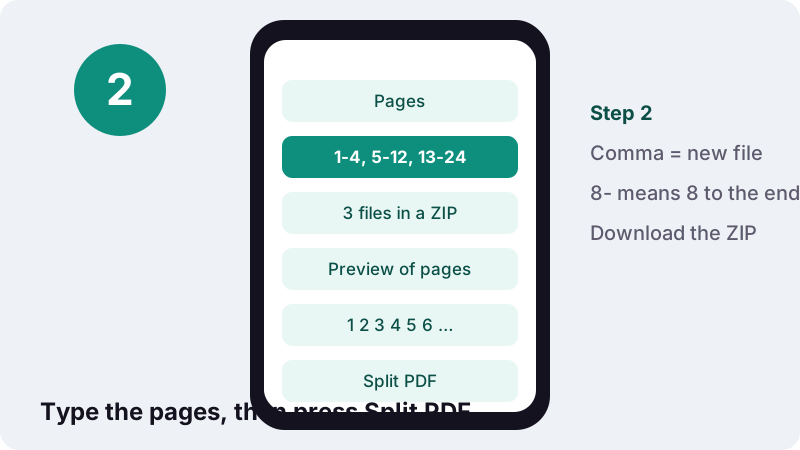
Write page numbers and ranges separated by commas. In By ranges mode, every comma starts a new output file; in Extract mode, everything you type goes into one file. Spaces are optional.
| You type | Meaning | By ranges gives | Extract gives |
|---|---|---|---|
| 3 | Page 3 only | 1 file: page 3 | 1 file: page 3 |
| 1-3, 4-6 | Two blocks of three | 2 files | 1 file, pages 1 to 6 |
| 8- | Page 8 to the last page | 1 file: 8 to end | 1 file: 8 to end |
| -3 | First page to page 3 | 1 file: 1 to 3 | 1 file: 1 to 3 |
| 1, 3, 5 | Three single pages | 3 files | 1 file with 3 pages |
| 7, 2 | Page 7, then page 2 | 2 files | 1 file: page 7 first |
- A backwards range such as
6-4is read as 4 to 6. - Numbers past the end are trimmed: on a 10-page file,
8-20means 8 to 10. - Semicolons work like commas, which helps if you copy a list from a spreadsheet.
- If nothing you typed matches a real page, the tool tells you how many pages the PDF has instead of producing an empty file.
Why can a PDF be cut cleanly page by page?
Because PDF stores a document as a sequence of self-contained pages, each with its own content, fonts and images. Taking page 5 out does not disturb pages 4 or 6. The Library of Congress format description puts it simply:
“PDF represents formatted, page-oriented documents. These documents may be structured or simple.”
The current version of the format is PDF 2.0, published by ISO as ISO 32000-2:2020. This split tool copies the page objects you choose into fresh files, so text remains selectable and images keep their resolution. Nothing is re-drawn or compressed.
Is it safe to split PDF files online here?
Yes, because the file is not sent online at all. The page loads its PDF engine once, then works on the document inside your browser tab. When it finishes, it reports the time taken, the data read and 0 bytes uploaded.
Mozilla's documentation for web developers describes the browser feature that makes this possible:
“The File API enables web applications to access files and their contents.”
The same documentation adds that web pages can only reach files the user makes available, through a file input or drag and drop. In practice, this page sees exactly the one PDF you picked, nothing else on your disk, and it keeps no copy after you close the tab.
Splitting is often done precisely to share less: sending one page of a payslip instead of the whole year, or the pages of a lease that concern one tenant. Keeping that step private makes sense.
Splitting PDFs: worked examples
Each example below gives the file, the mode and the exact text to type. Adapt the numbers to your own preview grid.
A 24-page report into three parts for three reviewers
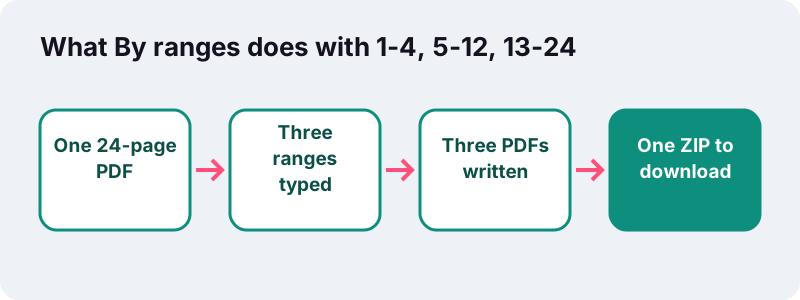
Mode By ranges, type 1-4, 5-12, 13-24. You get three PDFs in a ZIP: the summary, the main findings and the appendix, each small enough to email separately.
Only the signed page and the annex of a contract
A 14-page contract where page 9 holds the signatures and pages 12 to 14 are the annex. Mode Extract pages, type 9, 12-14. The result is a 4-page PDF in that order.
A stack of scanned invoices
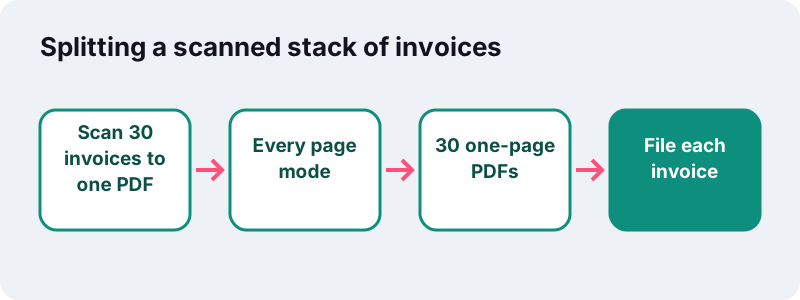
Thirty one-page invoices fed through a scanner usually come out as one 30-page PDF. Mode Every page splits them into thirty files named page-1 to page-30, ready to rename and file.
A yearly bank statement, one file per quarter
A 36-page statement with nine pages per quarter. Mode By ranges, type 1-9, 10-18, 19-27, 28-. The last range uses the open end, so it still works if the bank added a closing page.
A textbook chapter for revision
A 300-page course PDF where chapter 6 runs from page 141 to 178. Extract pages, type 141-178. A 38-page file is far easier to carry on a phone and annotate.
By ranges or Extract: what is the difference?
By ranges makes one file per comma-separated group; Extract makes a single file from everything you type. The same text, 1-2, 5, gives two files in the first case and one 3-page file in the second.
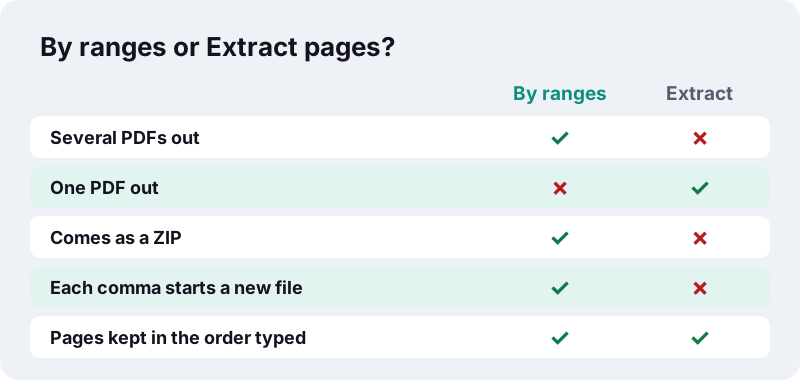
A detail that surprises people: in Extract mode, the pages follow the order you type them. Writing 5, 1-4 puts page 5 first. That makes Extract a quick way to move a single page to the front, although the organizer is the better tool for larger reshuffles.
How do I split a PDF on a phone or a Mac?
On any phone, open this page in the browser, choose the PDF from the file picker and follow the same steps. The ZIP or single PDF is saved where your browser keeps downloads; open a ZIP with your file manager or an unzip app.
| Device | Built-in option we could confirm | Browser route |
|---|---|---|
| Mac | Preview: drag thumbnails from the sidebar to the desktop to create a new PDF | This page in Safari or Chrome |
| iPhone | Preview app: add, delete, rotate, move or crop pages; no split described | This page in Safari |
| Android | Chrome opens PDFs on Android 12 and up; no split described | This page in Chrome |
| Windows | No split command found in Microsoft's support pages | This page in Edge or Chrome |
Apple's Preview guide confirms that on a Mac you can create a new PDF by dragging thumbnails to the desktop. That works well for one page at a time. For many ranges at once, typing them here is faster and gives consistent file names.
What should I check after splitting?
Open one or two of the output files and confirm the first and last page of each. Mistyped ranges are the only common source of error, and a quick look catches them.
- Count the files in the ZIP; it should match the number of comma-separated groups you typed.
- Open the first file and check that it starts on the page you expect.
- Open the last file and check that nothing was cut off at the end.
- Rename the files to something meaningful before sending, such as
contract-signature-page.pdf.
If a part is still too large for an email or a portal, run it through Compress PDF or a preset like compress to 500 KB. Splitting first and compressing second keeps each part readable.
Should I split a PDF or compress it to fit an upload limit?
Split PDF files when the form accepts several attachments or only needs some pages; compress when it insists on one file. Splitting never lowers quality, while strong compression turns pages into pictures.
- Portal has several upload slots (ID, proof of address, payslips): split the scan into matching parts and upload each one.
- Only page 1 is requested: extract it. A single page is almost always far below any limit.
- One slot, strict size cap: compress to a target, and remove pages nobody asked for first.
- Email bounced for size: split into two or three ranges and send them as separate messages.
For scale, in our tests a 5-page scanned contract of 2,522 KB compressed to 384 KB with the 500 KB target, but its text stopped being selectable. Splitting keeps every page exactly as scanned, so each part simply weighs what its own pages weigh.
A sensible order when both are needed: split first, check which parts are still too big, then compress only those. That way the light text pages keep their sharp, searchable text.
What are the limits of this split PDF tool?
It takes one PDF at a time, it cannot open password-protected files, and very long documents depend on your device's memory. Specifically:
- One file per job. To cut several PDFs, run them one after another; the page remembers nothing between jobs.
- Passwords: a locked PDF shows a message asking you to remove the password in your reader first.
- Preview cap: the grid shows up to 200 page thumbnails. Longer files still split completely; the page tells you how many pages are not shown.
- No split by file size or by bookmarks. You choose pages by number.
- Scanned pages stay images. Splitting does not add searchable text.
The opposite job, putting files together, lives on the merge page. Splitting and merging together let you rebuild almost any document.
Split, then what?
Split parts often need one more step. Typical follow-ups are turning a single page into an image, numbering the pages of a chapter, or joining parts from two different documents.
- Rejoin selected parts in a new order with Merge PDF.
- Turn a one-page extract into a JPG for a chat or form with PDF to JPG.
- Delete a few stray pages without splitting at all using Remove pages.
Frequently asked questions
How do I split a PDF into single pages?
Choose the PDF, select Every page and press Split PDF. You get a ZIP containing one PDF per page, named with the page number.
How do I extract only certain pages from a PDF?
Select Extract pages and type the pages you want, for example 2, 5-7. You get one new PDF with only those pages, in the order you typed them.
Does splitting a PDF reduce quality?
No. Pages are copied into the new files without re-compressing images or converting text, so each part looks identical to the original pages.
Is my PDF uploaded when I split it?
No. Your browser reads and cuts the file on your device. The result screen confirms that 0 bytes were uploaded.
Why did I get a ZIP file?
Every page and By ranges usually produce several PDFs, so they are packed into one ZIP to download in a single step. Extract pages, or a single range, gives a plain PDF.
What does 8- mean in the pages box?
It means page 8 through the last page. Likewise, -3 means the first page through page 3.
Can I split a password-protected PDF?
Not directly. Remove the password in your PDF reader, save an unlocked copy, and split that copy.
Can I split several PDFs at once?
The tool works on one PDF per job. Load the next file when the first is done; each job takes seconds for ordinary documents.
Is ilovepdfe the same as iLovePDF?
No. ilovepdfe is an independent website, not affiliated with iLovePDF, which is a separate company. The practical difference is that ilovepdfe processes files in your browser instead of uploading them.
Can I split a PDF on my phone?
Yes. Open the page in your phone's browser, pick the PDF, choose a mode and download the result. Larger files take a little longer on phones than on computers.
Sources
- PDF (Portable Document Format) Family — Library of Congress
- ISO 32000-2:2020 Document management — Portable document format — Part 2: PDF 2.0 — ISO
- File API — MDN Web Docs (Mozilla)
- FileReader — MDN Web Docs (Mozilla)
- Add, delete, or move PDF pages in Preview on Mac — Apple Support
- Add, delete, rotate, move, or crop PDF pages in Preview on iPhone — Apple Support
- Manage PDFs in Chrome (Android) — Google Chrome Help
- PDF — Wikipedia