How to test an online PDF tool before you trust it
- Prepare a test file. Use a harmless PDF of known size, for example a 300 KB file, not your real document.
- Open the Network tab. Press F12 on the PDF site, choose Network and clear the list.
- Run one job. Merge, compress or rotate the test file and save the result.
- Read the requests. A request about the size of your file going out means it was uploaded. If there is none, the job ran on your device.
What makes a good iLovePDF alternative?
A good iLovePDF alternative does the jobs you need, keeps your document under your control, and is honest about its limits. For many people that means a free tool with no account that does not copy files to a remote server.
Disclosure: ilovepdfe is an independent website. It is not affiliated with, endorsed by or connected to iLovePDF S.L., which is a separate company with a far larger range of tools than ours. This page is written by the ilovepdfe team, so read it as one side’s view and test for yourself.
We will not tell you that one site is “best”. Instead, the sections below give you a checklist you can apply to any PDF website, including ours, in a few minutes.
Why do people look for another online PDF tool?
Usually for one of five practical reasons: privacy, a size limit they must hit, a free-use cap, ads or sign-up walls, or a missing feature. Knowing your own reason tells you which part of the checklist matters most.
- Privacy. The file is a passport scan, a bank statement or a medical report, and you would rather it never left your phone.
- A hard size limit. A visa, exam or job portal accepts “max 100 KB” and a generic compressor gives you 140 KB.
- Free-use caps. Some services limit file size, file count or daily tasks unless you pay.
- Friction. Pop-ups, ads and account prompts slow down a ten-second job.
- A feature gap. You need OCR, signing or Word conversion that your current tool lacks or charges for.
What should you check in any online PDF tool?
Check five things: where the file is processed, what the limits are, whether it has the exact feature you need, how many ads and prompts it shows, and whether it speaks your language. The table turns those into quick tests.
| What to check | Why it matters | How to test it in a minute |
|---|---|---|
| Where processing happens | An uploaded file sits, at least briefly, on someone else’s computer | Watch the browser’s Network tab while you run a job |
| Limits | Caps on size, pages or daily tasks can block you at the worst moment | Try your largest real file, then a second job straight after |
| Exact feature | “Compress” and “compress to 100 KB” are different promises | Run your real task, not a demo file |
| Ads and prompts | Fake download buttons and sign-up walls waste time | Count the clicks from opening the page to saving the result |
| Language and device | A tool you cannot read on your phone is not useful | Open it on the device you will really use |
Is the file uploaded or processed locally?
This is the question most reviews skip. Browsers can read a file you choose without sending it anywhere; whether a site does that, or sends it to a server, is a design decision. The test in the next section answers it for any site.
Does it state its limits up front?
A trustworthy tool tells you before you start what it will and will not do. Look for plain statements about file size, page count and output quality, not only “unlimited” banners.
How can you tell whether a PDF site uploads your file?
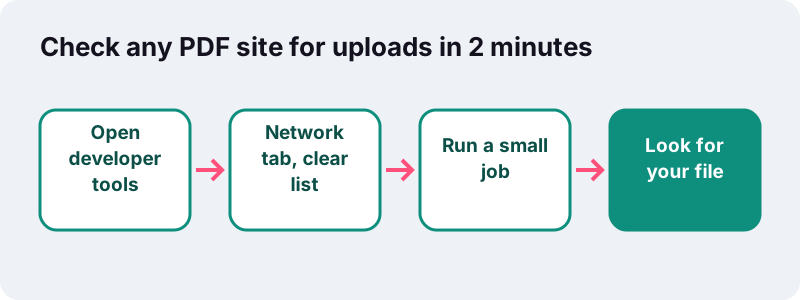
Open your browser’s developer tools, switch to the Network tab and run a small job. If you see a request whose size roughly matches your file going to the site’s server, it was uploaded; if not, the work was done locally.
- On a computer, open the PDF site and press F12 (or right-click and choose Inspect).
- Pick the Network tab and clear the list so it is empty.
- Run a job with a small test PDF of known size, for example 300 KB.
- Sort the list by size. A request of about 300 KB going out means an upload. Small code files coming in are normal: pages fetch their own scripts.
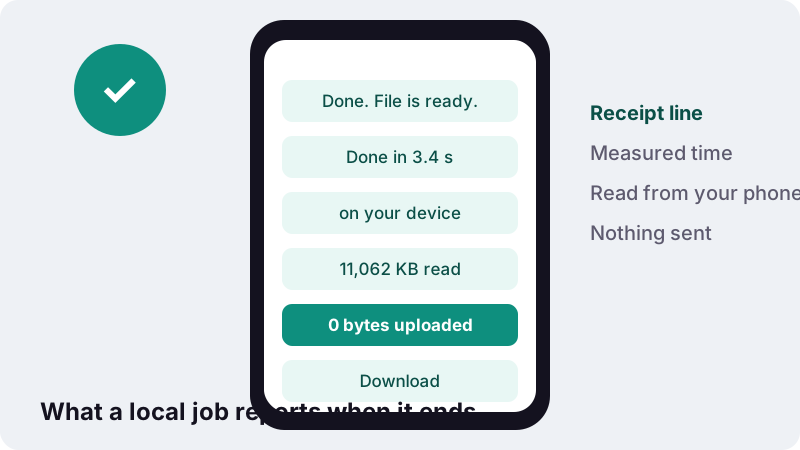
On ilovepdfe you will see the page load its own libraries, such as pdf-lib.min.js, from ilovepdfe.com, and nothing carrying your document. Every job also ends with a receipt line saying how many bytes were read and that 0 bytes were uploaded.
How do upload-based and in-browser PDF tools differ?
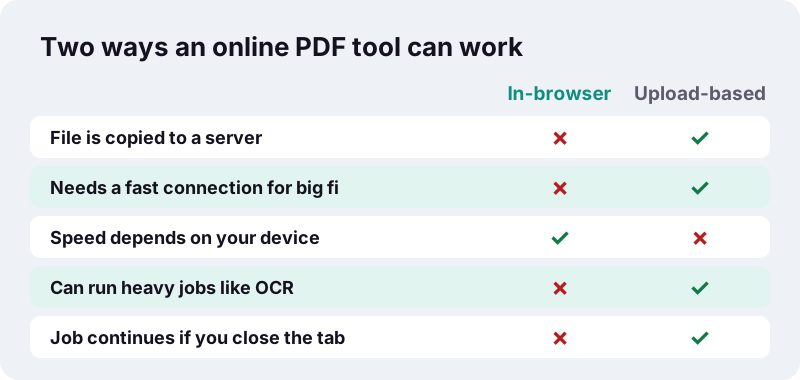
An upload-based tool sends your file to a server, processes it there and sends a result back. An in-browser tool reads the file through a standard web interface and processes it with JavaScript on your own device. Both are legitimate designs with different strengths.
“Using the File API, web content can ask the user to select local files and then read the contents of those files. This selection can be done by either using an HTML <input type="file"> element or by drag and drop.”
The catch with local processing is that your device does the heavy lifting. A server farm can run OCR or office conversions that are hard to do well in a browser tab. That is why upload-based services usually offer a wider menu.
How does ilovepdfe compare as an iLovePDF alternative?
As an iLovePDF alternative, ilovepdfe is narrower but more private: it covers the common page jobs and exact-size compression, all on your device, and it lacks office conversion, OCR, signing and password tools. The table compares it with typical upload-based services in general, not with any one company.
| Feature | ilovepdfe | Typical upload-based services |
|---|---|---|
| Where the file is processed | In your browser, on your device | On the provider’s servers |
| Account needed | Never | Often optional; sometimes needed for bigger jobs |
| Price | Free, no paid tier | Free tier plus paid plans is common |
| Merge, split, organize, remove pages | Yes | Yes |
| Compress to an exact KB limit | Yes, with presets from 50 KB to 1 MB | Usually a general “compress” with levels |
| JPG, PNG, WebP to PDF; PDF to images | Yes | Yes |
| PDF to one long image | Yes | Rare |
| Rotate, page numbers, text watermark | Yes (watermark: Latin letters only) | Yes |
| PDF to or from Word, Excel, PowerPoint | No | Common |
| OCR, sign, edit text, password tools | No | Common |
| Ads | None at the moment | Varies |
What does ilovepdfe not do yet?
Quite a lot, and you should know before you try it. If your task is on this list, an in-browser iLovePDF alternative like ours is the wrong tool today.
- No conversion between PDF and Word, Excel or PowerPoint.
- No OCR, so a scanned page cannot become searchable text.
- No e-signatures, form filling or editing of the words on a page.
- No password protection or unlocking. A protected PDF shows an error asking you to remove the password first.
- No drag-and-drop page sorting: Organize uses arrow buttons.
- No import from cloud drives; you pick files from your device.
- Watermark text is limited to Latin characters for now, so Arabic, Chinese or Japanese text will not work there.
What it does do is listed tool by tool on the home page, with nothing promised beyond what the code performs.
When is a different kind of tool the better choice?
Choose a different kind of tool whenever the job needs heavy computing, legal-grade records or office formats. These situations are common, and pretending otherwise would waste your time.
- Turning a PDF into an editable Word or Excel file. Use a converter built for office formats, or the export feature of an office suite you already own.
- Searchable text from scans. You need OCR software.
- Contracts that need signatures with an audit trail. Use a dedicated e-signature service.
- Encrypting a file before sending it. Use software that offers password protection.
- Hundreds of files every day. A desktop program or a scripted workflow will be faster than any browser tab.
- An old phone and a 300-page scan. Local processing uses your device’s memory; a computer, or a server-side tool, may cope better.
Where does an in-browser alternative do well?
It shines on everyday page jobs with sensitive files and on strict size limits. Merging, splitting, rotating and reordering copy pages without re-drawing them, so nothing loses quality, and nothing leaves your device.
- Joining a CV, a cover letter and certificates with Merge PDF before a job application.
- Hitting a portal’s “max 200 KB” with compress to 200 KB, which steps quality down until the file fits.
- Turning phone photos of a form into one PDF under a limit with JPG to PDF under 100 KB.
- Pulling three pages out of a long report with Split PDF in Extract mode.
- Posting a short document in a chat as one picture with PDF to long image.
What does shrinking a PDF really cost in quality?
Lossless steps cost nothing; deep compression of scans and photos always trades detail for size. Any honest tool, wherever it runs, faces the same trade-off, because most of a scan’s weight is JPEG image data.
“The degree of compression can be adjusted, allowing a selectable trade off between storage size and image quality.”
On ilovepdfe, compression first tries a lossless re-save. Stronger levels re-draw pages as JPEG images, which makes text unselectable and removes links and form fields. The tool keeps whichever result is smallest and returns your original if nothing helps.
How fast is an in-browser alternative on real files?
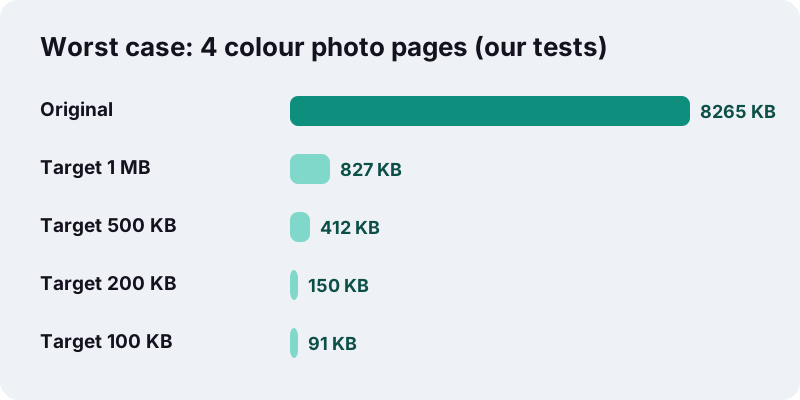
Fast for everyday files and slower for heavy photo pages squeezed very small. In our tests on a normal Windows PC with Chrome, three 12 MP phone photos became a PDF under 100 KB in 3.4 seconds.
| Files in our tests | Limit | Result | Fits? | Time |
|---|---|---|---|---|
| 1 phone photo, 3,687 KB | 50 KB | 42 KB | Yes | 1.2 s |
| 2 phone photos, 7,375 KB | 100 KB | 83 KB | Yes | 2.1 s |
| 3 phone photos, 11,062 KB | 200 KB | 124 KB | Yes | 2.8 s |
| 4 colour photo pages, 8,265 KB | 500 KB | 412 KB | Yes | 26.0 s |
| 4 colour photo pages, 8,265 KB | 50 KB | 91 KB | No | 50.3 s |
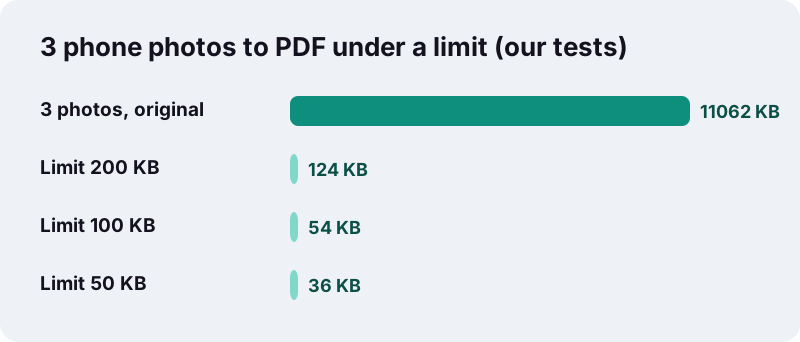
The failed row matters: when a target is out of reach, the tool tells you instead of returning an unreadable page. Splitting the file or dropping pages is usually the better fix.
Is local processing enough to call a tool safe?
It removes the biggest risk, a copy of your file on a stranger’s server, but you still have to trust the page you load. The sensible habit is to verify rather than believe any privacy claim, ours included.
- Run the Network-tab test above once, on the tool you plan to use.
- Prefer sites that tell you what they cannot do, not only what they can.
- Close the tab when you are done; a local tool keeps nothing once the page is gone.
- For files that are truly secret, offline desktop software on a trusted computer is the strictest option.
Our privacy page lists what the site itself collects, and the About page explains the open-source libraries that do the work.
Which devices and browsers does it work on?
Any modern browser on iPhone, iPad, Android, Windows, macOS, Linux or ChromeOS. Nothing to install. The interface is in English today.
One device detail is worth knowing. MDN’s canvas reference notes that iOS devices limit the drawing area to 4,096 × 4,096 pixels, so very long documents turned into one image are narrowed on iPhone. On iPhone and iPad, saved files are found in the Files app, as Apple Support explains.
Which tool should you try first?
Pick the one that matches the job in front of you, run it on a real file and judge the result. If it is not the right fit, the checklist above still works for whatever you try next.
Frequently asked questions
Is ilovepdfe the same as iLovePDF?
No. ilovepdfe is an independent website and is not affiliated with or endorsed by that company. The practical difference is that ilovepdfe processes files in your browser instead of uploading them.
What is the most private kind of online PDF tool?
One that processes the file in your browser, so no copy is sent to a server. You can check any site with the Network tab in your browser’s developer tools.
Is ilovepdfe completely free?
Yes. There is no paid tier, no account and no file-size paywall, and there are no ads at the moment.
Can ilovepdfe convert PDF to Word or Excel?
No, not yet. It converts between PDF and images (JPG, PNG, WebP) only. For office formats, use a converter built for them.
Does ilovepdfe have OCR, signing or password tools?
No. Those features are not available today, and a password-protected PDF shows an error asking you to remove the password first.
Can it compress a PDF to an exact size like 100 KB?
Yes. Choose Exact size and type the limit, or open a preset page. In our tests a 5-page scan of 2,522 KB came out at 82 KB for a 100 KB target.
Why is an in-browser tool sometimes slower?
Because your own device does the work. In our tests four full-colour photo pages compressed to 100 KB took about 50 seconds on a normal PC; phones take longer.
Does ilovepdfe keep a copy of my files?
No. Files are read and processed in your browser and are never sent to our servers, so there is nothing for us to keep.
Does it add a watermark to my PDF?
No. Only the Watermark tool adds text, and only the text you type.
All tools
Free PDF tools that work on your device, not on a server — Every ilovepdfe tool on one page, all running in your browser.
Sources
- Using files from web applications — MDN Web Docs
- File API — MDN Web Docs
- FileReader — MDN Web Docs
- <canvas>: The Graphics Canvas element (maximum canvas size) — MDN Web Docs
- JPEG — Wikipedia
- PDF (Portable Document Format) Family — Library of Congress
- Find files on your iPhone or iPad — Apple Support