How to convert JPG to PDF
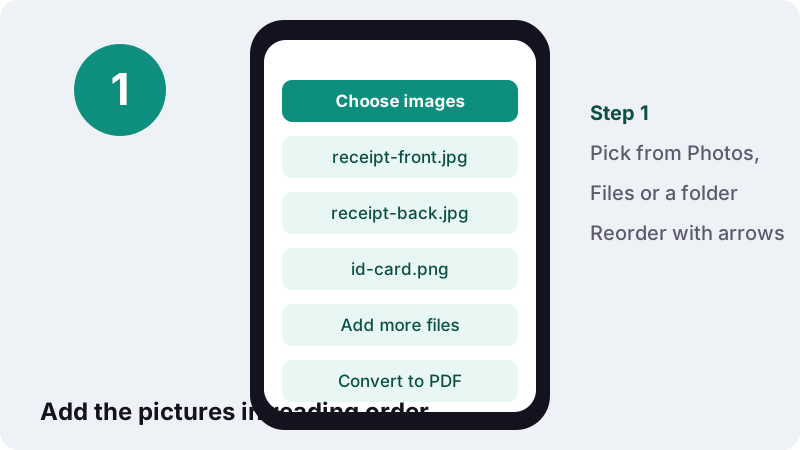
- Choose images. Tap Choose images and select one or more JPG, PNG, WebP, GIF or BMP files.
- Arrange the pages. Use the up and down arrows to set the page order, or × to remove a picture.
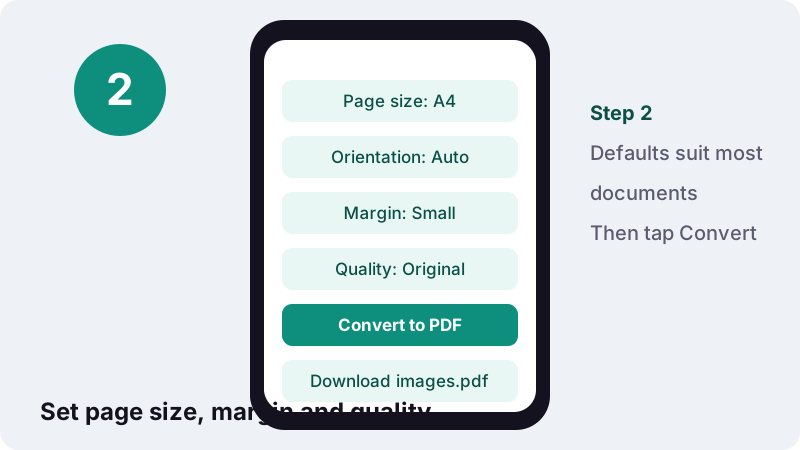
- Set the options. Pick page size, orientation, margin and image quality.
- Convert to PDF. Press Convert to PDF and wait for the done message.
- Download. Tap the download button to save the PDF to your device.
How do you convert JPG to PDF with ilovepdfe?
Tap Choose images, select your photos, check the page options and press Convert to PDF. A moment later a download button appears with the finished file. That is the whole JPG to PDF process, and it works the same in a phone browser and on a desktop.
- Choose images: one JPG or many, picked from your gallery, the Files app or a folder.
- Put them in order with the ↑ and ↓ arrows, or remove one with ×. Use Add more files if you forgot a page.
- Pick page size, orientation, margin and image quality. The defaults (A4, automatic, small margin, original quality) suit most documents.
- Press Convert to PDF, then download. One picture is named after the photo; several pictures become
images.pdf.
When it finishes, the page prints a short receipt such as “Done in 1.2 s on your device · 3.6 MB read · 0 bytes uploaded”. The last figure is the point: the work was done locally, not on a remote machine.
Which image formats can you turn into a PDF?
The converter accepts JPG (also spelled JPEG), PNG, WebP, GIF and BMP. JPG and PNG can go into the PDF byte for byte; the other three are first redrawn as JPEG pictures, because those are the two picture types the PDF library embeds directly.
| Format | Typical source | What happens at “Original” quality |
|---|---|---|
| JPG / JPEG | Phone cameras, scanners, most downloads | Copied into the PDF unchanged |
| PNG | Screenshots, logos, signatures on white | Copied unchanged, transparency kept |
| WebP | Images saved from web pages | Redrawn as a JPEG, then embedded |
| GIF | Old graphics, simple animations | Redrawn as a JPEG; one still frame is kept |
| BMP | Older Windows tools | Redrawn as a JPEG, then embedded |
| HEIC / HEIF | iPhone camera default | Not accepted yet: save as JPG first (see below) |
MDN describes JPEG as “currently the most widely used lossy compression format for still images” and notes that it suits photographs better than sharp diagrams. That is why a screenshot of a spreadsheet often looks cleaner as a PNG, while a photo of a receipt is fine as a JPG.
Transparent areas in a PNG stay transparent at Original quality. If the PNG has to be redrawn (High or Small file quality, or a size target), transparent areas are filled with white so they do not turn black.
What page size should you choose: A4, Letter or same as image?
Choose A4 for most of the world, US Letter for the United States, Canada and the Philippines, and Same as image when the PDF will only be viewed on screen. A4 is the default, because most forms and portals outside North America expect it.
| Option | Exact size | Size in PDF points | Good for |
|---|---|---|---|
| A4 | 210 × 297 mm (8.27 × 11.7 in) | 595 × 842 pt | Applications, schools, offices in most countries |
| US Letter | 8.5 × 11 in (215.9 × 279.4 mm) | 612 × 792 pt | US and Canadian forms, home printers there |
| Same as image | Follows the picture's pixels | 1 pixel = 1 point | Screen viewing, posters, scans you will never print |
The A4 and Letter dimensions above match the figures listed by Wikipedia for ISO 216 paper sizes and for Letter paper. A PDF point is 1/72 of an inch, which is how 8.5 inches becomes 612 points.
Why does Same as image make a huge page?
With Same as image, every pixel becomes one point. A 12-megapixel phone photo of about 4,000 × 3,000 pixels therefore turns into a page more than a metre wide. It looks normal on screen because viewers zoom to fit, but a printer will shrink it. For anything that might be printed, stay with A4 or Letter.
How do orientation and margins work?
Orientation decides whether each page stands upright or lies on its side; margin decides how much white border surrounds the picture. On Automatic, a picture that is wider than it is tall gets a landscape page and a tall one gets a portrait page, so a mixed stack still fills each page well.
| Setting | Choices | Effect |
|---|---|---|
| Orientation | Automatic · Portrait · Landscape | Automatic follows each picture's shape; the others force every page the same way |
| Margin | None · Small · Large | None = edge to edge; Small ≈ 7 mm (20 pt); Large ≈ 14 mm (40 pt) |
| Scaling | Always on with A4/Letter | The picture is shrunk to fit inside the margins and centred, never stretched or cropped |
A small margin is the safest choice for printing, because many home printers cannot ink the last few millimetres of the sheet. Choose None for photo books or when a portal displays pages on screen only.
What does each image quality setting change?
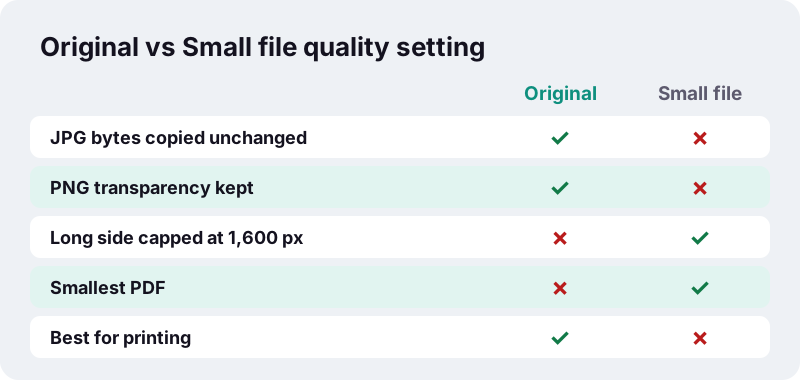
Quality controls whether your pictures are copied as they are or redrawn smaller. Original keeps JPG and PNG data exactly as the camera wrote it. High and Small file redraw every picture as a new JPEG, trading detail for a lighter PDF.
| Quality | Longest side | JPEG quality | Choose it when |
|---|---|---|---|
| Original | Unchanged | Unchanged (JPG/PNG) | You will print, archive or zoom into small text |
| High (smaller) | Up to 3,000 px | 0.88 of 1 | You want a lighter file that still prints well |
| Small file | Up to 1,600 px | 0.6 of 1 | Email attachments and uploads where size matters more than zoom |
If a form gives you a hard limit, the dedicated pages do the guesswork for you: JPG to PDF under 100 KB keeps shrinking the pictures until the file fits.
Does converting JPG to PDF reduce photo quality?
No, not at the default setting. With Original quality the JPG data is placed inside the PDF without being decoded and saved again, so not a single pixel changes. The PDF is only slightly larger than the photos themselves, because it adds a little page structure around them.
Quality only drops when you ask for a smaller file. JPEG is a lossy format: Wikipedia notes it typically reaches about 10:1 compression with a loss that is perceptible but widely considered acceptable. Every time a picture is re-encoded, a little more fine detail goes.
- Keep the original photos: the PDF is a copy, not a replacement.
- Convert from the camera file, not from a screenshot of it. A screenshot of a photo is already a second-generation copy.
- If you need both a print copy and an upload copy, make two PDFs from the same photos with different quality settings.
Can you convert iPhone photos (HEIC) to PDF?
Not directly yet: the tool does not open HEIC files, so iPhone photos have to reach it as JPG. Recent iPhones save pictures as HEIF/HEIC by default, but Apple provides several built-in ways to get a JPEG copy, and most of them happen automatically.
According to Apple Support, iOS 11 introduced HEIF for photos because it compresses better than JPEG while keeping the same visual quality. The same page lists the settings and sharing paths that produce a JPEG instead:
- Shoot in JPEG from now on: open Settings, tap Camera, tap Formats, then tap Most Compatible.
- Mac: open the HEIF image in Photos or Preview, choose File > Export, and select JPEG or PNG.
- Windows PC via USB: photos imported from an attached iPhone may be converted to JPEG, unless Keep Originals is turned on under Settings > Apps > Photos.
“If sharing this media using other methods, such as AirDrop, Messages, or email, and the receiving device doesn’t support the newer media formats, the media might automatically be shared in a more compatible format, such as JPEG or H.264.”
Quick test: if the file name ends in .heic, the converter will not accept it. Send the photo to yourself by email or AirDrop to a device that lacks HEIF support, or export it as JPEG, and use that copy.
How do you combine several photos into one PDF?
Select all the pictures at once (or add them in batches with Add more files), arrange them with the arrows, and convert. Each picture becomes one page, in exactly the order shown in the list, inside a single file called images.pdf.
- Name files with numbers (01-front.jpg, 02-back.jpg) so they arrive already sorted.
- Keep orientation on Automatic for a mix of landscape receipts and portrait pages.
- Rotate a sideways photo in your gallery app before adding it; the converter places pictures as they are stored.
- Need to join the result with an existing PDF? Run both through Merge PDF afterwards.
There is no fixed page cap. The practical limit is your device's memory: a dozen phone photos is easy on a recent phone, while a hundred full-resolution pictures will be slower on an older one.
What happens to your photos while they are converted?
They stay on your device. The page uses the browser's File API to read the pictures you select, builds the PDF in memory with JavaScript, and offers it back as a download. There is no upload step and no server copy to delete afterwards.
“The FileReader interface lets web applications asynchronously read the contents of files (or raw data buffers) stored on the user's computer, using File or Blob objects to specify the file or data to read.”
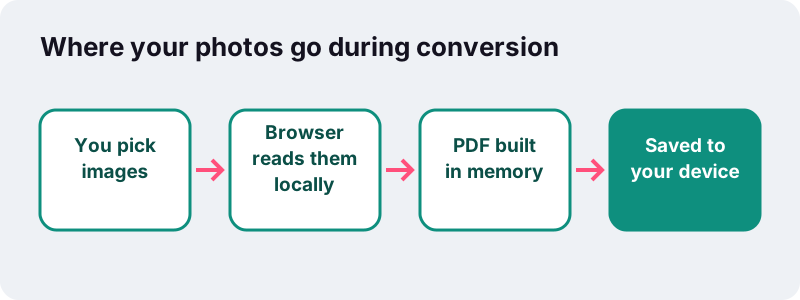
This matters for the documents people most often photograph: ID cards, bank letters, medical forms, signed contracts. As MDN's File API overview explains, a web page can only reach files the user hands to it through a file picker or drag and drop.
You can check it yourself in the Network tab of your browser’s developer tools: the converter’s code downloads once, and no request carries your photos.
How small will a JPG to PDF file be?
At Original quality, roughly the size of your photos added together. Twelve-megapixel phone pictures are often 3 to 4 MB each, so a three-page PDF can pass 10 MB. To hit an upload limit, use a size page that shrinks the pictures for you.
| Pictures (12 MP phone photos) | As JPG files | Target 200 KB | Target 100 KB | Target 50 KB |
|---|---|---|---|---|
| 1 photo | 3,687 KB | 110 KB | 42 KB | 42 KB |
| 2 photos | 7,375 KB | 83 KB | 83 KB | 36 KB |
| 3 photos | 11,062 KB | 124 KB | 54 KB | 36 KB |
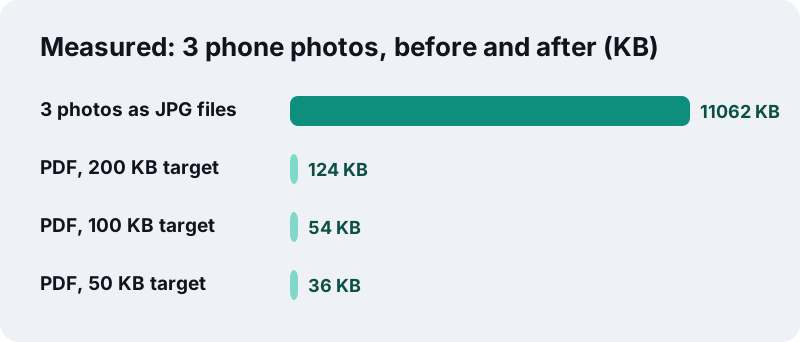
Each target has its own page with a preset limit you can still edit: under 50 KB, under 100 KB and under 200 KB. If you already have a PDF that is too big, Compress PDF handles that instead.
Common problems and quick fixes
Most issues come from the picture itself rather than the conversion. These are the ones we see most often, with the fix for each.
A page comes out sideways
The photo is stored sideways and only displayed upright by your gallery. Rotate and save it in the gallery app, or fix the finished file with Rotate PDF, which turns pages without touching image quality.
My photo does not appear in the file picker
It is probably HEIC, or a format outside the five supported types. Export it as JPG or PNG and try again.
The text on a photographed page is hard to read
Shoot in daylight, hold the phone parallel to the sheet, and fill the frame with the page. A sharper source survives compression far better than a dim, angled one.
The PDF is far too large for an email
Switch quality to Small file, or use a size page. Mail services limit attachment size, and many online forms are far stricter than email.
Does it work on iPhone, Android, Windows and Mac?
Yes. Any up-to-date browser runs the converter, with no app or account. What differs between devices is where the photos come from and where the PDF lands afterwards.
| Device | Where to pick photos | Where the PDF is saved |
|---|---|---|
| iPhone / iPad (Safari) | Photo Library, Take Photo, or Choose File | Files app, Downloads folder (or share sheet) |
| Android (Chrome) | Gallery, Camera or Files | Downloads |
| Windows (Edge, Chrome, Firefox) | File Explorer dialog, or drop files onto the page | Downloads folder |
| Mac (Safari, Chrome) | Finder dialog, or drag from Photos/Finder | Downloads folder |
On a phone, very large batches take longer because mobile browsers have less memory to work with. If a big batch stalls, convert it in two halves and join them with Merge PDF.
What can you do with the PDF next?
Once your pictures are one document, the other tools pick up where this one stops. Add page numbers to a long photo set with Add page numbers, reorder pages in Organize PDF, or turn a PDF back into pictures with PDF to JPG.
Frequently asked questions
Is this JPG to PDF converter free?
Yes. There is no sign-up, no daily limit and no watermark added to your pages. Because the work happens on your own device, there is no server cost per file to recover.
Are my photos uploaded anywhere?
No. The browser reads the files locally and builds the PDF in memory. After a conversion the page reports 0 bytes uploaded. Only the converter's own code is downloaded; your pictures are never sent.
Can I convert JPG to PDF without losing quality?
Yes. Leave quality on Original: JPG and PNG pictures are placed in the PDF unchanged. Only High, Small file or a size target redraws them smaller.
How many images can I put in one PDF?
There is no fixed number. Each picture becomes a page; the limit is your device's memory. Dozens of phone photos work on most phones, and computers handle more.
Why can't I select my iPhone photos?
They are probably saved as HEIC, which the tool does not read yet. Set Camera > Formats to Most Compatible for future shots, or export existing photos as JPEG.
Does it work with PNG screenshots?
Yes. PNG files are embedded unchanged at Original quality, and transparency is preserved. That keeps screenshots of text crisp.
Which page size should I use for a form?
Use whatever the form asks for. If it says nothing, choose A4 outside North America and US Letter in the US and Canada.
Can I change the order of the pages?
Yes. Before converting, move each picture with the ↑ and ↓ arrows or remove it with ×. After converting, Organize PDF can still move pages.
Is ilovepdfe the same as iLovePDF?
No. ilovepdfe is an independent site and is not affiliated with iLovePDF, which is a separate company. The practical difference is that ilovepdfe processes your files in your browser instead of uploading them.
Can I make the PDF smaller than a set size?
Yes. Use the under 50 KB, 100 KB or 200 KB pages, where the target is preset and editable. The tool steps the pictures down until the PDF fits and tells you if it cannot.
Sources
- Using HEIF or HEVC media on Apple devices — Apple Support
- FileReader – Web APIs — MDN Web Docs
- File API — MDN Web Docs
- Image file type and format guide — MDN Web Docs
- International standard paper sizes (ISO 216) — Wikipedia
- Letter (paper size) — Wikipedia
- JPEG — Wikipedia
- High Efficiency Image File Format — Wikipedia