How to use the PDF tools
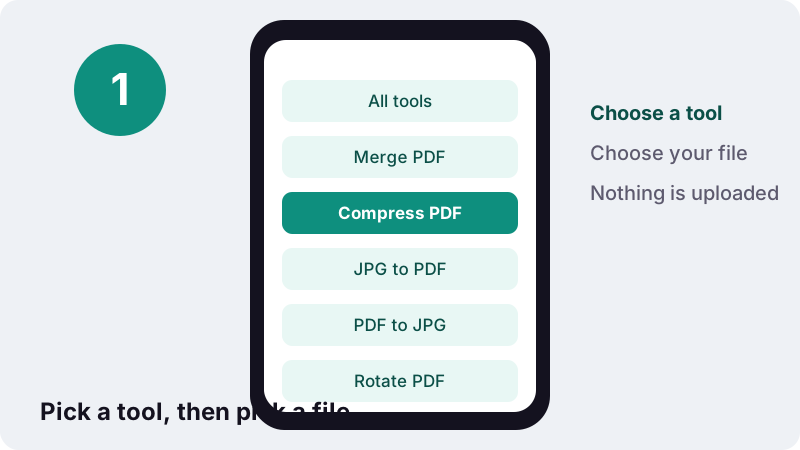
- Choose a tool. Pick the job from the list above, for example Compress PDF or Merge PDF.
- Choose your file. Tap “Choose a PDF” (or “Choose images” for JPG to PDF), or drop files onto the box. The file is read on your device.
- Set the options. Pick the order, pages, level, size limit or format. Every option has a short hint under it.
- Run it and download. Press the action button, such as “Compress PDF” or “Merge PDF”, then tap Download. The receipt shows the time taken and 0 bytes uploaded.
What are these PDF tools, in one minute?
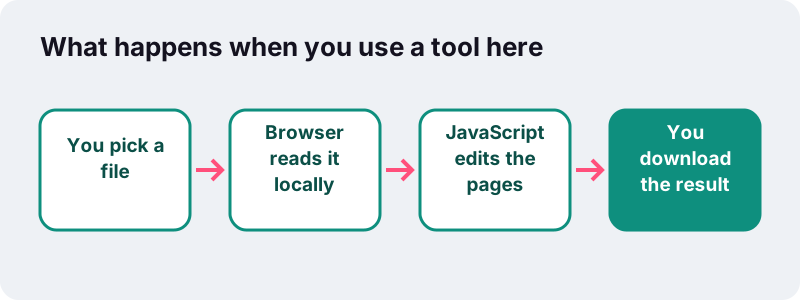
ilovepdfe is a set of free PDF tools that do their work inside your web browser. You choose a file, the page edits it on your phone or computer, and you save the result. The file never travels to our servers, because there is no server step at all.
There are eleven tools today, plus ready-made size presets for the limits people meet most often, such as 100 KB or 1 MB. Each tool does one job and tells you plainly when it cannot do it.
- Free: no trial, no paid tier, no file-size paywall.
- No account: open a page and use it.
- No watermark added to your output.
- No upload: the browser reads the file on your device.
- No ads at the moment.
Which PDF tools are available?
The PDF tools fall into four groups: combine and cut, make smaller, convert, and edit. The table lists what each one actually does, what you give it and what you get back.
| Tool | What it does | You give it | You get |
|---|---|---|---|
| Merge PDF | Joins files in the order you set with ↑ ↓ | 2 or more PDFs | merged.pdf |
| Split PDF | Every page, by ranges, or extract a selection | 1 PDF | ZIP of PDFs, or one PDF |
| Organize pages | Moves pages with ← → arrows | 1 PDF | Reordered PDF |
| Remove pages | Deletes pages you tap or type | 1 PDF | Shorter PDF |
| Compress PDF | Light, Recommended, Strong or an exact KB limit | 1 or more PDFs | Smaller PDF |
| JPG to PDF | Puts photos and scans into one PDF | JPG, PNG, WebP, GIF, BMP | One PDF |
| PDF to JPG | Saves pages as images at 72, 150 or 300 DPI | 1 PDF | JPG, PNG or WebP (ZIP if several) |
| PDF to long image | Stacks every page into one tall picture | 1 PDF | One JPG or PNG |
| Rotate PDF | Turns all pages or single pages | 1 PDF | Rotated PDF |
| Page numbers | Prints numbers in one of 6 positions | 1 PDF | Numbered PDF |
| Watermark | Stamps a text such as DRAFT on each page | 1 PDF | Watermarked PDF |
How do you combine, cut and reorder PDF pages?
Use Merge to join files, Split to cut one apart, Organize to change the order and Remove pages to drop what you do not need. All four copy pages without re-drawing them, so text stays selectable and nothing loses quality.
Merge: several PDFs into one
Add two or more files, set the order with the up and down arrows, remove any with ×, and add more before you start. A typical case: a cover letter, a CV and two certificates that a job portal wants as one attachment. Open Merge PDF for the full guide.
Split: one PDF into parts
Three modes cover most needs. Every page gives a ZIP of single-page files. By ranges, for example 1-3, 4-6, gives one file per range. Extract, for example 2, 5-7, gives a single file with only those pages. A preview grid shows each page first.
Organize and remove pages
Organize pages shows thumbnails that you move left or right with arrows, then saves the order you see. Remove pages lets you tap × on thumbnails or type page numbers; it refuses to delete every page, so you never end up with an empty file.
How does the compress tool reach an exact size?
Pick “Exact size”, type the limit in KB, and the engine steps down through ten resolution and quality levels until the file fits. If it cannot fit without making pages unreadable, it says so instead of handing you a blurry file.
Every job starts with a lossless re-save. The Light, Recommended and Strong levels then re-draw each page as a JPEG at a set resolution, and the tool keeps whichever is smallest: the original, the lossless copy or the re-drawn one.
Honest trade-off: re-drawn pages become pictures. Text is no longer selectable or searchable, and links and form fields are lost. If you need those, use Light or the lossless result.
Size presets save typing: compress to 100 KB, 200 KB, 500 KB, 1 MB and 50 KB. Each one is the same tool with the limit already filled in, and you can still change it.
How do you turn photos into a PDF, or a PDF into pictures?
JPG to PDF turns pictures into one document, and PDF to JPG does the reverse. A third tool, PDF to long image, stacks all pages into one tall picture for chats.
Pictures to PDF
It accepts JPG, PNG, WebP, GIF and BMP. You choose the page size (same as image, A4 or US Letter), the orientation, a margin and the image quality. At “Original”, JPG and PNG pictures go in untouched; other formats are re-encoded to JPEG.
For forms with a strict limit there are presets: under 50 KB, under 100 KB and under 200 KB. Pictures are scaled down and re-encoded step by step until the PDF fits.
PDF to images and long images
PDF to JPG saves pages as JPG, PNG or WebP at 72, 150 or 300 DPI, for all pages or a list you type. PDF to long image builds one picture 800, 1,200 or 1,600 pixels wide, with no gap, a thin gap or a wide gap between pages.
Which small edits can you make?
Three PDF tools handle quick fixes: rotate pages, add page numbers and stamp a text watermark. None of them needs an account or adds any mark of ours.
- Rotate PDF: turn every page 90° right, 180° or 90° left, or tap ↻ on single pages. It sets the PDF rotation flag, so nothing is re-drawn.
- Page numbers: six positions, formats such as “1”, “Page 1”, “1 / 10” or “Page 1 of 10”, a starting number, a size from 6 to 48 pt and an option to skip the cover.
- Watermark: your text, size, opacity from 10 to 50%, diagonal or horizontal, in grey, red or blue. For now it supports Latin characters only.
Why do PDF tools with no upload matter for privacy?
Because the file you are editing often holds a passport scan, a payslip or a medical letter. When the work happens in your browser, that file is read from your own storage and never copied to someone else’s computer.
This is a standard browser feature, not a trick. Mozilla’s developer documentation describes the interface that web pages use to open a file you choose:
“The FileReader interface lets web applications asynchronously read the contents of files (or raw data buffers) stored on the user's computer, using File or Blob objects to specify the file or data to read.”
A page can only reach a file after you hand it over with the file picker or by dropping it, as the File API overview explains. Our pages then process those bytes in memory and offer the result as a download.
How can you check that nothing was uploaded?
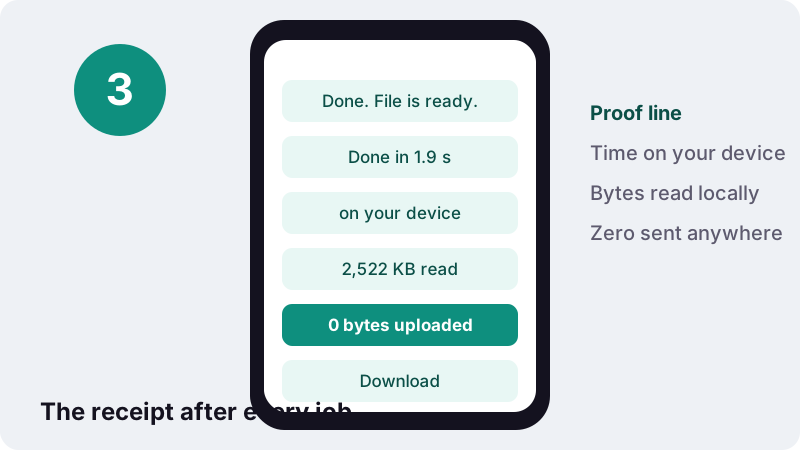
After every job the page prints a receipt such as “Done in 1.9 s on your device · 2,522 KB read · 0 bytes uploaded”. You can also confirm it yourself in a minute with your browser’s own tools.
- Open any tool page and wait until it has loaded.
- Open the developer tools (F12 on most desktop browsers) and choose the Network tab.
- Run a job, for example compress a PDF.
- Read the list: the page fetches its own code files from ilovepdfe.com, such as pdf-lib.min.js, but no request carries your document, and nothing is sent when you press Download.
How fast are in-browser PDF tools?
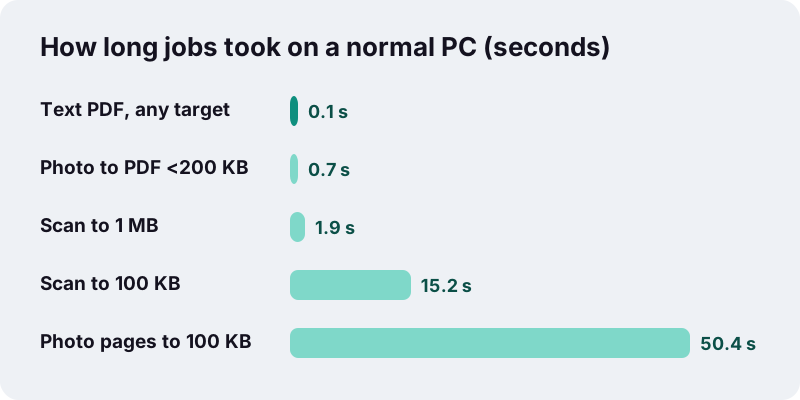
Most jobs finish in a second or two; heavy scans pushed to a very small size take longer. In our tests on a normal Windows PC with Chrome, the slowest case was four full-colour photo pages squeezed to 100 KB, which took about 50 seconds.
| File in our tests | Job | Result | Time |
|---|---|---|---|
| 6-page text PDF, 5 KB | Compress, any target | 4 KB | 0.1–0.4 s |
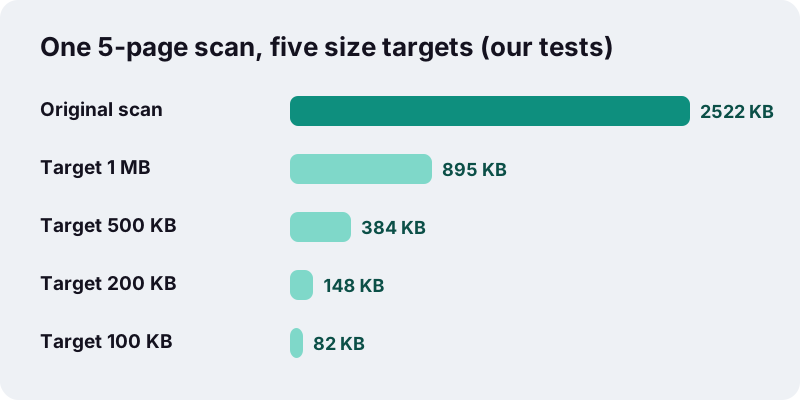
| 5-page scanned contract, 2,522 KB | Compress to 1 MB | 895 KB | 1.9 s |
| 5-page scanned contract, 2,522 KB | Compress to 100 KB | 82 KB | 15.2 s |
| 4 colour photo pages, 8,265 KB | Compress to 100 KB | 91 KB | 50.4 s |
| 1 phone photo, 12 MP, 3,687 KB | JPG to PDF under 200 KB | 110 KB | 0.7 s |
| 3 phone photos, 11,062 KB | JPG to PDF under 100 KB | 54 KB | 3.4 s |
What file sizes can you realistically expect?
Text PDFs made on a computer are usually tiny already; scans and photos are where the megabytes come from. A useful rule from our tests: for scanned pages, budget roughly 15 to 20 KB per page if the result must stay readable at 100 KB.
- Our 6-page text PDF was 5 KB before and 4 KB after, already under every target.
- Our 5-page scan fitted 1 MB, 500 KB, 200 KB and 100 KB, but 50 KB was borderline: try fewer pages.
- Four full-colour photo pages fitted 100 KB (91 KB) but not 50 KB.
- Three 12 MP phone photos became a 36 KB PDF when we set a 50 KB limit.
When a portal sets a tiny limit and the file still does not fit, splitting it with Split PDF and sending it in parts often works better than crushing the quality.
Do these PDF tools work on phones, tablets and computers?
Yes. They run in any modern browser on iPhone, iPad, Android, Windows, macOS, Linux and ChromeOS. Heavy jobs depend on your device’s memory, so big scans take longer on phones.
| Device | Browser | Where to find your file | Worth knowing |
|---|---|---|---|
| iPhone, iPad | Safari or any browser | Files app; downloads usually land in the Downloads folder in iCloud Drive | iOS caps the drawing area at 4,096 × 4,096 pixels, which limits very long images |
| Android phone or tablet | Chrome or any modern browser | Your browser’s download list | Large scans take longer than on a computer |
| Windows PC | Edge, Chrome, Firefox | Your browser’s download folder | Fastest place for big batches |
| Mac | Safari, Chrome, Firefox | Your browser’s download folder | Same tools, same results |
| Linux, ChromeOS | Chrome, Firefox | Your browser’s download folder | No install needed |
Apple’s guide to finding files on iPhone or iPad covers where downloads go, and MDN’s canvas reference notes the iOS drawing limit.
What is a PDF, and why is it awkward to edit?
A PDF is a fixed-layout document format, standardised as ISO 32000, designed to look the same on any device. That is great for sending and printing, but it means pages are built to be displayed, not rewritten.
“PDF represents formatted, page-oriented documents. These documents may be structured or simple. They may contain text, images, graphics, and other multimedia content, such as video and audio.”
Because a PDF is a set of pages, page-level jobs such as merging, splitting, rotating and reordering are clean and lossless. Changing the words inside a page is a different, harder problem, which is why we do not offer text editing yet.
What can’t these tools do yet?
Being honest saves you time. These features are not available today, so if you need them, a different kind of tool is the right choice.
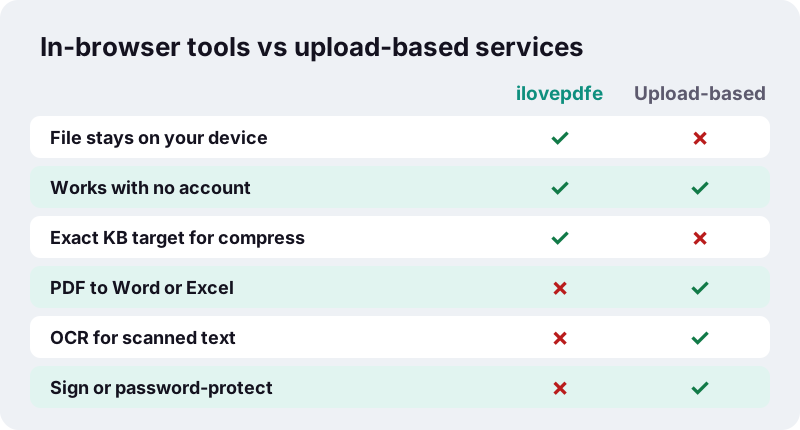
- Password protect or unlock. A password-protected PDF shows an error asking you to remove the password first.
- Sign, fill forms or edit the text inside a page.
- OCR (turning a scanned image into searchable text).
- Converting PDF to or from Word, Excel or PowerPoint.
- Drag-and-drop page reordering (Organize uses arrows) and importing from cloud drives.
- Non-Latin text in watermarks.
Did you mean a different PDF site?
Plenty of visitors arrive after typing “i love pdf” or a similar name into a search box. To be clear: ilovepdfe is an independent website. It is not affiliated with, endorsed by or connected to iLovePDF S.L., which is a separate company.
The practical difference is how the work is done. Many online PDF services upload your file to their servers; the tools here process it in your browser instead. If you are weighing options, our guide to choosing an online PDF tool compares the two approaches fairly, including what we do not do.
Who builds this, and how is it paid for?
ilovepdfe is a small independent project. These PDF tools rely on well-known open-source libraries for reading, writing and drawing PDF pages, all running on your device. The About page explains the technology and the people behind it.
There are no ads at the moment and nothing to buy. Because files never reach us, we have no document storage to secure or sell. Our privacy page sets out what the site does and does not collect, and you can reach us through the contact page.
Which tool should you open first?
Start from the job, not the tool name. The list below matches common tasks to the right page; the grid under it links all our PDF tools.
- A portal says “max 200 KB”: compress to 200 KB.
- You photographed receipts on your phone: JPG to PDF.
- A scan came out sideways: Rotate PDF.
- You need pages 3 to 7 only: Split PDF in Extract mode.
- You want to post a document in a chat: PDF to long image.
Frequently asked questions
Are these PDF tools really free?
Yes. Every tool is free with no trial, no paid tier and no file-size paywall. There are no ads at the moment.
Are my files uploaded anywhere?
No. Your browser reads the file from your device and the page processes it in memory. After each job you see a line such as “0 bytes uploaded”, and you can confirm it in your browser’s Network tab.
Do I need to create an account or install anything?
No account, no app and no extension. Open the page in a modern browser on your phone or computer and choose a file.
Is ilovepdfe the same as iLovePDF?
No. ilovepdfe is an independent website, not affiliated with that company or its owner. The practical difference is that ilovepdfe processes files in your browser instead of uploading them.
Is there a file-size limit?
There is no limit we set. The practical limit is your device’s memory. In our tests a 4-page, 8 MB photo PDF compressed to 100 KB in about 50 seconds on a normal PC; phones are slower.
Will compressing make my text unsearchable?
Only if pages are re-drawn. The lossless step keeps everything. The Light, Recommended, Strong and Exact size levels may turn pages into images, which removes selectable text, links and form fields. The tool keeps whichever version is smallest.
Can I compress a PDF to exactly 100 KB?
You can set 100 KB as the maximum and the tool steps down quality until the file fits. In our tests a 5-page scan of 2,522 KB came out at 82 KB. If a file cannot fit while staying readable, the page says so.
Do you add a watermark to my files?
No. We never add our own mark. The Watermark tool only stamps text that you type yourself.
Can I open password-protected PDFs?
Not yet. A protected file shows an error asking you to remove the password first. Password tools are not available today.
Can I convert PDF to Word or Excel here?
Not yet. The site converts between PDF and images (JPG, PNG, WebP), but not to or from Word, Excel or PowerPoint.
Do the tools work on iPhone and Android?
Yes, in Safari, Chrome and other modern mobile browsers. On iPhone and iPad, downloads usually appear in the Files app’s Downloads folder in iCloud Drive.
Sources
- File API — MDN Web Docs
- FileReader — MDN Web Docs
- Using files from web applications — MDN Web Docs
- <canvas>: The Graphics Canvas element (maximum canvas size) — MDN Web Docs
- PDF (Portable Document Format) Family — Library of Congress
- PDF — Wikipedia
- JPEG — Wikipedia
- Find files on your iPhone or iPad — Apple Support