How to compress a PDF to 50 KB
- Choose a PDF. Tap Choose a PDF or drop the file on the box. Trim it to the one or two pages the form needs first.
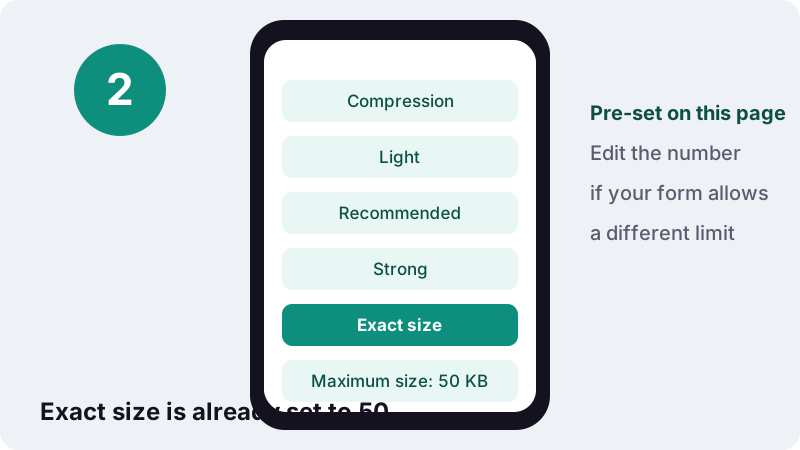
- Keep Exact size at 50 KB. Exact size is pre-set to 50 KB. Change the Maximum size number if your form states a different limit.
- Press Compress PDF. The tool steps down image quality until the file fits, or tells you honestly that it cannot.
- Check and download. Open the result at 100% zoom, confirm every detail is legible, then download the new PDF.
How do you compress PDF to 50KB?
To compress PDF to 50kb, choose your file above, leave the Exact size target at 50 KB and press Compress PDF. The tool re-draws each page as a lighter image, steps down quality until the file fits, then tells you the final size. For pages you can still read comfortably, keep it to one or two.
Nothing is sent anywhere. Your browser reads the PDF from your own storage, does the work in memory and hands back a new file. When it finishes you see a line such as “Done in X s on your device · 0 bytes uploaded”.
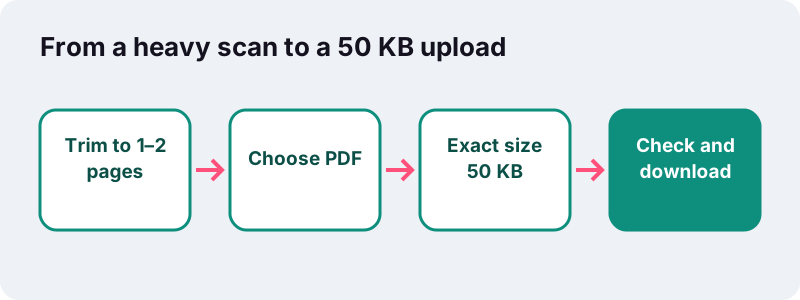
- Cut the document down to the pages the form really asks for (usually one).
- Tap Choose a PDF or drop the file onto the box.
- Keep Exact size with the limit at 50, or type the exact figure printed on your form.
- Press Compress PDF, open the result at 100% zoom, and download it if every word is legible.
What fits when you compress PDF to 50KB?
In our tests every file got under the limit, but not every file stayed easy to read. A typed document fitted with room to spare. Multi-page scans and colour photo pages also fitted, only by dropping to the lowest quality steps, where small print suffers.
| Test file (our engine, 2026-10-17) | Original | Result at 50 KB target | Fits? Readable? | Time |
|---|---|---|---|---|
| 6-page text PDF made on a computer | 5 KB | 4 KB | Yes, text sharp | 0.4 s |
| 5-page contract scanned at 200 DPI | 2,522 KB | 34 KB | Yes, small print hard to read | 26.8 s |
| 4 full-colour photo pages (worst case) | 8,265 KB | 39 KB | Yes, detail heavily reduced | 73.4 s |
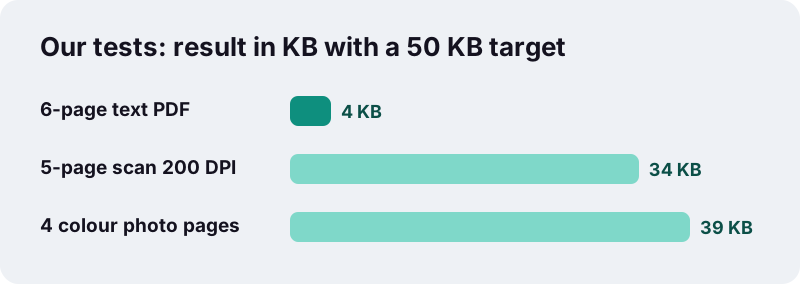
Fitting is not the same as being readable. At the lowest steps the engine re-draws pages at roughly 35% of their resolution with very low JPEG quality, so footnotes, stamps and handwriting blur. If your file looks like these, the real fix is fewer pages, a grey-scale rescan and tight cropping.
Why is 50 KB so much harder than 100 KB?
Because the budget is shared between pages. Halving the limit halves the room each page gets, and below a certain point the letters themselves start to break up. Our rule of thumb for scans is roughly 15–20 KB per page to stay readable.
| Pages in the PDF | Budget per page at 50 KB | What to expect for a scan |
|---|---|---|
| 1 | about 50 KB | Comfortable; small print usually survives |
| 2 | about 25 KB | Workable for clean black-on-white pages |
| 3 | about 17 KB | At the edge of our 15–20 KB rule |
| 5 | about 10 KB | Below the rule; fits, but small print blurs |
| 10 | about 5 KB | Not realistic for readable scanned pages |
The pages become JPEG images, and JPEG is a lossy format. Squeeze it hard enough and you get blocky halos around letters. Wikipedia’s article on image compression describes exactly that trade-off:
“Lossy compression methods, especially when used at low bit rates, introduce compression artifacts.”
Which uploads usually ask for 50 KB?
The tightest limits tend to appear on online application forms that expect one small supporting page per field. Many exam, recruitment and scholarship portals cap each attachment at a few dozen kilobytes, and 50 KB is a common figure. Always read the number printed next to the upload button.
- A single proof page: an ID card, a birth or caste certificate, a domicile letter.
- A one-page mark sheet or a degree certificate.
- A signed declaration or undertaking printed on one sheet.
- A fee receipt or a bank challan.
Notice the pattern: these are single sheets. Forms that set a 50 KB cap rarely expect a ten-page bundle. If you are trying to fit a long report into 50 KB, check whether the field is really meant for it, or whether another field allows a larger file.
How should you scan a page so it lands under 50 KB?
Start small at the source. A clean, cropped, grey-scale scan at a modest resolution leaves the compressor far less to throw away, so the final 50 KB file keeps sharper letters than a huge colour photo crushed down after the fact.
Crop to the paper
Background table, fingers and shadows all cost bytes. Apple’s Notes and Files apps let you drag the corners of a scan to fit the page before you keep it, and the Google Drive mobile app also scans documents. Use that edge adjustment every time.
Prefer grey over colour
A black-and-white certificate does not need colour data. Grey-scale images store one brightness value per pixel instead of three colour channels, yet still keep smooth tones, which matters for stamps and signatures:
“Grayscale images have many shades of gray in between.”
Scan at 150 DPI, not 600
Dots per inch measures how many samples the scanner takes along each inch of paper. For an on-screen check by a clerk, 150 DPI is usually plenty. Our 2.5 MB test contract was scanned at 200 DPI; a lower setting gives the engine a head start.
| Scanner or app setting | Better for 50 KB | Why |
|---|---|---|
| Colour mode | Grayscale or black and white | Less data per pixel |
| Resolution | 150 DPI | Fewer pixels to compress |
| Area | Paper only, edges cropped | No wasted background |
| Pages | Only the required page | The whole budget goes to it |
| Lighting | Even, no shadows | Flat areas compress well |
What happens to your PDF at this size?
Every page is turned into a picture. That is the only way to reach a size this small, and it has side effects you should know before you upload anything official.
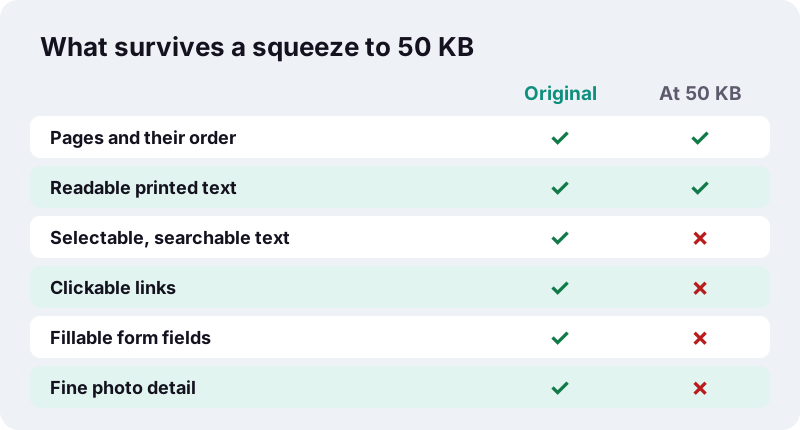
- Text can no longer be selected, copied or searched; it is part of the image.
- Clickable links and fillable form fields disappear.
- Page count, page order and the look of each page stay the same.
- Your original file is never changed; you download a new copy.
If a form must stay fillable, fill it and print it to PDF first, then compress the printed copy. A re-drawn page cannot be edited afterwards.
What if the result is too blurry, or does not reach 50 KB?
Then the file has more content than 50 KB can hold readably. The tool walks down its quality steps and, if even the lowest one is too big, stops and tells you instead of returning something useless. If it fits but looks blurry, the answer is the same: change the input.
| Situation | What to try | Tool |
|---|---|---|
| Extra pages the form does not need | Delete them, then compress again | Remove pages |
| Several documents in one file | Split into one PDF per document | Split PDF |
| You still have the original photos | Build a new PDF from the pictures | JPG to PDF under 50 KB |
| The form accepts a larger file elsewhere | Use a looser target | Compress to 100 KB |
Rebuilding from photos often works surprisingly well. In our tests, three 12-megapixel phone photos (11,062 KB) became a 36 KB PDF with the 50 KB target, because the converter scales each picture down before it embeds it.
Is a 50 KB PDF still readable?
Usually, for one or two pages of ordinary print. Small grey footnotes, faint stamps and handwriting are the first things to suffer. Check the result yourself before submitting, because a rejected document costs more time than a second try.
- Open the downloaded file and zoom to 100%.
- Read your name, date of birth and any reference number aloud.
- Look at the signature and the seal: are the edges still recognisable?
- Check the smallest line of print on the page.
- If anything is doubtful, remove a page or rescan in grey, then run it again.
Does it matter whether you use a phone or a computer?
The result is the same; only the waiting time changes. All the work happens on your device, so a desktop finishes faster than a budget phone. Heavy colour scans are the slow case at this target.
| File | Time on our Windows PC at 50 KB | On a phone |
|---|---|---|
| Typed 6-page PDF | 0.4 s | Near instant |
| 5-page 200 DPI scan | 26.8 s | Expect longer; keep the tab open |
| 4 colour photo pages | 73.4 s | Can take minutes on older phones |
Why does in-browser compression matter for ID documents?
Because the pages you squeeze to 50 KB are often the most personal ones you own: identity cards, certificates, mark sheets. Here the browser reads the file locally through the standard File API and builds the new PDF in memory. The file is not uploaded to us.
Many online PDF services upload your file to their servers to process it. That is not automatically unsafe, but it adds a copy you do not control. Local processing removes that step, and it also means the tool keeps working on a slow or metered connection once the page has loaded.
Which other size presets should you try?
If your form allows a little more room, a looser target keeps pages much sharper than when you compress PDF to 50KB. The general Compress PDF tool offers Light, Recommended and Strong levels when there is no fixed limit at all.
Frequently asked questions
Can every PDF be compressed to 50 KB and stay readable?
Most files can be made to fit, but not all stay readable. In our tests a typed 6-page PDF came out at 4 KB with sharp text, while a 5-page 200 DPI scan (34 KB) and four colour photo pages (39 KB) only fitted at the lowest quality steps, where small print is hard to read.
How many scanned pages fit in 50 KB?
Roughly two to three, based on our rule of thumb of 15–20 KB per scanned page for readable text. One page is the safest choice; clean black-on-white pages do better than colour ones.
Will my text still be selectable after compressing to 50 KB?
No. To reach this size each page is re-drawn as an image, so text cannot be copied or searched and links or form fields are removed. The printed look of the page stays.
The form says 50 KB but my 49 KB file is rejected. Why?
Some sites count a kilobyte as 1,000 bytes, others as 1,024. Type 45 in the Maximum size field to leave a safety margin, then upload the new file.
Should I scan in colour or black and white for a 50 KB limit?
Grayscale is usually the better choice for printed documents. It keeps stamps and signatures smooth while storing far less data than colour.
What resolution should I scan at?
Around 150 DPI is a sensible starting point for documents that will be read on screen. Higher settings create more pixels that the compressor then has to throw away.
Can I compress a PDF to 50 KB on my phone?
Yes, in any modern mobile browser. It runs on the phone itself, so a heavy scan takes longer than on a computer. Keep the tab open until the download button appears.
Is my document uploaded anywhere?
No. The browser reads the file locally and creates the smaller copy in memory. The finished screen shows how many bytes were read and that 0 bytes were uploaded.
Is ilovepdfe the same as iLovePDF?
No. ilovepdfe is an independent site and is not affiliated with iLovePDF, which is a separate company. The practical difference here is that ilovepdfe compresses your file inside your browser instead of uploading it.
What should I do if the result is too blurry after I compress PDF to 50KB?
Remove pages you do not need, rescan in grayscale at about 150 DPI, or rebuild the PDF from the original photos with the JPG to PDF under 50 KB tool. Then compress again.
Sources
- Image compression — Wikipedia
- Grayscale — Wikipedia
- Dots per inch — Wikipedia
- JPEG — Wikipedia
- How to scan documents on your iPhone or iPad — Apple Support
- Scan documents with Google Drive — Google Drive Help
- File API — MDN Web Docs
- Kilobyte — Wikipedia