How to rotate PDF pages
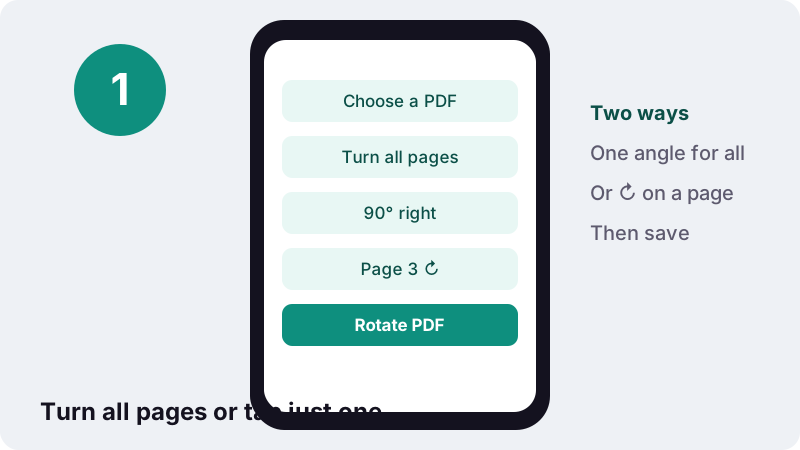
- Choose a PDF. Tap Choose a PDF or drop the file on the box. Page thumbnails appear.
- Pick the turn. Choose 90° right, 180° or 90° left for all pages, or tap ↻ under the individual pages to turn.
- Rotate PDF. Press Rotate PDF. The new orientation is written into the file on your device.
- Download. Tap the download button to save yourfile-rotated.pdf.
What does this rotate PDF tool do?
This rotate PDF tool turns pages by a quarter or half turn and saves a corrected copy of your document. You can turn every page by the same angle (90° right, 180° or 90° left) or tap ↻ on single pages that came out sideways in a scan.
It changes how each page is shown, not what is printed on it. The text, images, links and form fields stay exactly as they were, so nothing gets blurry and selectable text stays selectable. The work happens in your browser; the result screen confirms 0 bytes uploaded.
How do you rotate PDF pages in four steps?
Choose the file, pick an angle or tap the pages to turn, press the button and download. No installation, no account.
- Tap Choose a PDF or drop the file onto the box. Thumbnails of the pages appear.
- Under Turn all pages, choose 90° right, 180° or 90° left. The thumbnails turn so you can check the result.
- Or tap ↻ under a single page. Each tap adds a quarter turn to the right. Once you tap any page, only the pages you tapped are turned.
- Press Rotate PDF, then tap the download button to save
yourfile-rotated.pdf.
The angle for all pages and the per-page ↻ buttons don't combine. If you tap ↻ on any page, the tool applies only those per-page turns and leaves untouched pages as they are.
Which angle fixes which problem?
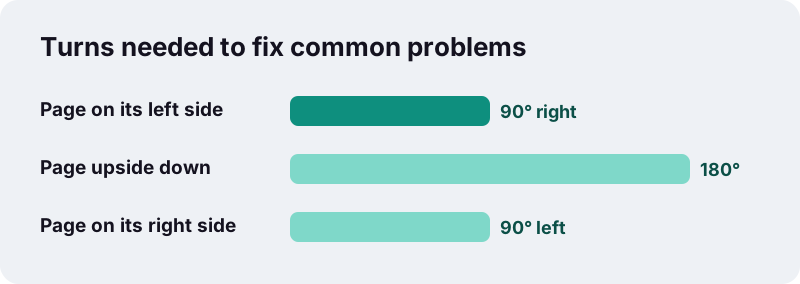
Look at where the top of the text points, then turn it back to the top edge. A page lying on its left side needs 90° right, one lying on its right side needs 90° left, and an upside-down page needs 180°.
| What you see | Where the top of the text points | Choose | Taps on ↻ |
|---|---|---|---|
| Page lying on its left side | Left edge | 90° right | 1 |
| Page upside down | Bottom edge | 180° | 2 |
| Page lying on its right side | Right edge | 90° left | 3 |
| Page already upright | Top edge | Leave it | 0 (or 4) |
Should a wide table stay landscape inside a portrait report?
Often, yes. A spreadsheet printed landscape is easier to read on screen when its page is turned so the rows run left to right, even if the rest of the report is portrait. Readers then show that single page wider than the others, which is normal and prints correctly with automatic orientation.
Not sure which way a page should face? Turn it in the thumbnail grid first. Nothing is saved until you press the button, so you can try every angle and compare before writing the change into the file.
Why does rotating a PDF here lose no quality?
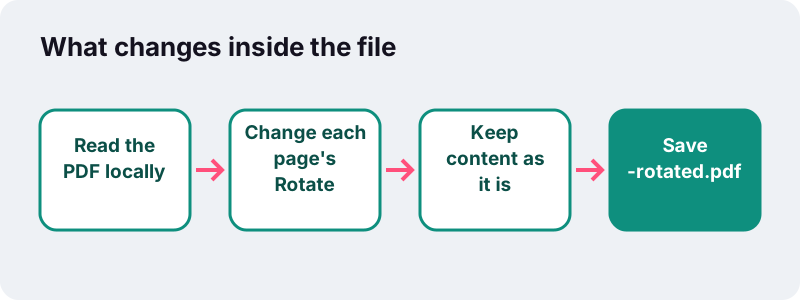
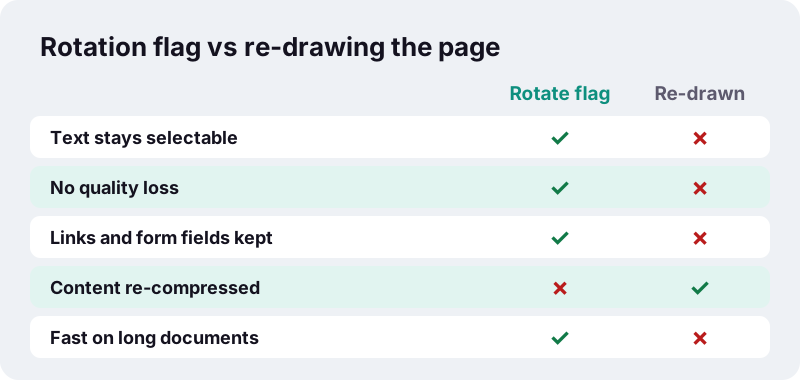
Because the tool only changes a small setting on each page that tells PDF readers which way to display it. The drawing instructions, fonts and embedded pictures are not decoded, re-drawn or re-compressed, so there is nothing to lose.
In the PDF format, every page can carry an entry named Rotate. The PDF Association's published corrections to ISO 32000-2, the PDF 2.0 standard, refer to it directly when describing how annotations behave:
“These descriptions assume the page is being viewed in the orientation specified by the Rotate entry.”
Our tool reads the current value on each page and adds your turn to it. A page already set to 90° that you turn 90° right ends at 180°. That is also why rotating the same file again is safe: values simply add up, and four quarter turns bring a page back where it started.
Why do scanned pages come out sideways?
Usually because the paper went into the scanner or under the phone camera in a different direction from the one the software expected. The scan is then saved exactly as captured, sideways or upside down, and every viewer shows it that way.
- Landscape pages fed portrait: wide tables, spreadsheets and certificates often end up lying on their side.
- Double-sided feeding: a stack flipped the wrong way can produce every second page upside down.
- Phone scans: photos store their orientation in an Exif tag, and a converter that ignores the tag can produce a sideways page.
- Mixed sources: merging a scan with a born-digital file can leave a few pages turned differently.
- Faxes and old archives: pages scanned decades ago often have no consistent orientation.
Wikipedia's article on Exif lists orientation (rotation) among the camera settings a photo can record. If the problem started with photos, the per-page ↻ buttons are the quickest fix once the PDF exists.
How do you rotate only some pages of a PDF?
Tap ↻ under each page that needs turning and leave the others alone. The thumbnails spin as you tap, so you can see the final orientation of every page before you save.
| Situation | What to do | Result |
|---|---|---|
| One sideways table on page 7 | Tap ↻ once on page 7 | Only page 7 turns 90° right |
| Pages 2 and 4 upside down | Tap ↻ twice on page 2 and twice on page 4 | Both turn 180°; the rest stay put |
| Whole scan lying on its right side | Don't tap pages; choose 90° left | Every page turns 90° left |
| Everything sideways except the cover | Tap ↻ on each page except page 1 | Cover stays, the others turn |
Very long files show a preview of the first pages and a line saying how many more are included. Pages without a preview still get the angle you picked for all pages.
Will rotating PDF pages break text, links or forms?
No. Since the page content is left exactly as it was, selectable text, internal links and form fields survive the rotation. You can still search the document, copy sentences out of it and fill in its fields afterwards.
This is the difference from tools that rebuild a page as a picture. Once a page becomes an image, its words turn into pixels: you cannot select or search them, and links stop working. A rotation flag avoids that entirely.
The file size can still change a little, because the tool re-saves the PDF in a compact structure. That is a change in how the file is packaged, not in what the pages contain.
Can you rotate PDF files on iPhone, Android or a computer?
Yes. This page works in any current browser on iPhone, iPad, Android, Windows, Mac and Linux, with the same thumbnails and buttons. Some devices also have a built-in way to turn pages.
| Device | On this page | Built-in option (per Apple Support) |
|---|---|---|
| iPhone / iPad | Safari or Chrome, download goes to Files | Preview app on iPhone: open the PDF, then Rotate Left or Rotate Right |
| Mac | Any browser | Preview: Rotate Left tool; hold Option for Rotate Right; select thumbnails to turn several |
| Android | Chrome or another browser, saves to Downloads | Depends on the phone maker's apps |
| Windows | Edge, Chrome, Firefox | Depends on the PDF reader installed |
“You can crop a page of a PDF to hide content, or rotate it to change its orientation.”
The advantage of the browser tool is that it is identical everywhere, needs no particular app and lets you mix whole-document and per-page turns in one pass.
Is it private to rotate a PDF in the browser?
Yes. Your browser reads the file you select through the FileReader interface, which MDN documents as reading files stored on the user's own computer, and only files the user explicitly picked. The rotation and the saving happen in the same tab.
Many online PDF services upload documents to their servers to process them. For a signed contract, a passport scan or a payslip that just needs turning upright, skipping the upload removes the risk that a copy sits somewhere else. Details are on our privacy page.
What else should you fix after rotating?
Rotation is often the first step of tidying a scan. Once the pages are upright, these tools finish the job, all running on your device as well:
- Put pages in the right order with Organize pages.
- Drop blank backs and duplicates with Remove pages.
- Shrink a heavy scan before emailing it with Compress PDF.
- Join the corrected file with others using Merge PDF.
- Add numbering for reviewers with Page numbers.
If you want the upright pages as pictures, convert them afterwards with PDF to JPG; the images follow the orientation you just saved.
What can't the rotation tool do?
It turns whole pages in 90° steps and nothing more. A few things to know before you start:
- No small angles: it cannot straighten a page scanned 3° crooked; the choices are quarter and half turns.
- No rotating part of a page: one image or paragraph cannot be turned on its own.
- One PDF at a time: merge files first if you want to fix them together.
- No locked files: password-protected PDFs show an error asking you to remove the password first.
- No text editing or OCR: a scanned page stays a scan, just upright.
Common questions when pages still look wrong
The PDF looks rotated in one app but not in another
Some viewers have a rotate view button that only changes what you see on screen and is not saved into the file. Saving through this tool writes the new orientation into the PDF itself, so every reader shows it the same way.
I turned the wrong page
Keep tapping ↻ on that page until it is back upright (four taps return it to the start), or press Start over and choose the file again.
The printout is still sideways
Check the printer dialog's orientation setting, which may be overriding the page. With automatic orientation on, a rotated landscape page usually prints correctly.
Frequently asked questions
How do I rotate a PDF and save it?
Choose the PDF here, pick 90° right, 180° or 90° left (or tap ↻ on single pages), press Rotate PDF and download the new file. The rotation is saved into the PDF, so it stays fixed in every reader.
Does rotating a PDF reduce quality?
No. The tool changes the page's rotation setting and leaves the content untouched, so text, images and lines keep exactly the same quality.
Can I rotate just one page?
Yes. Tap ↻ under that page. Each tap is a quarter turn to the right. Pages you don't tap stay as they are.
Is the text still selectable after rotating?
Yes. Because nothing is re-drawn as an image, selectable text, links and form fields keep working.
Are my files uploaded when I rotate pages?
No. The PDF is read and saved inside your browser. The result shows 0 bytes uploaded.
Can I rotate by 45 degrees or straighten a crooked scan?
No. Only 90° right, 180° and 90° left are possible. Small angle corrections need image-editing software.
Why is my PDF upside down after scanning?
The paper was fed or photographed in a different direction from what the scanner expected. Choose 180° for all pages, or tap ↻ twice on the affected pages.
Does it work on my phone?
Yes, in current browsers on iPhone, iPad and Android. Files go to Files → Downloads on iPhone and to Downloads on Android.
Can I rotate a password-protected PDF?
No. Remove the password in your PDF reader first; the tool shows a message if the file is locked.
Is ilovepdfe the same as iLovePDF?
No. ilovepdfe is an independent site and is not affiliated with iLovePDF, which is a separate company. The practical difference is that ilovepdfe processes your files in your browser instead of uploading them.
Sources
- Errata for ISO 32000-2:2020, clause 12: Interactive features — PDF Association
- PDF (Portable Document Format) Family — Library of Congress
- Crop or rotate a PDF in Preview on Mac — Apple Support
- Add, delete, rotate, move, or crop PDF pages in Preview on iPhone — Apple Support
- FileReader — MDN Web Docs
- Exif — Wikipedia
- PDF — Wikipedia