How to convert PDF to JPG
- Choose a PDF. Tap Choose a PDF or drop the file onto the box. A preview of the pages appears.
- Pick format and resolution. Choose JPG, PNG or WebP and 72, 150 or 300 DPI. Optionally type the pages you want, such as 1-3, 7.
- Convert to images. Press Convert to images. Each page is drawn and saved on your device.
- Download. Tap the download button. One page arrives as an image; several pages arrive as a ZIP.
What does this PDF to JPG converter do?
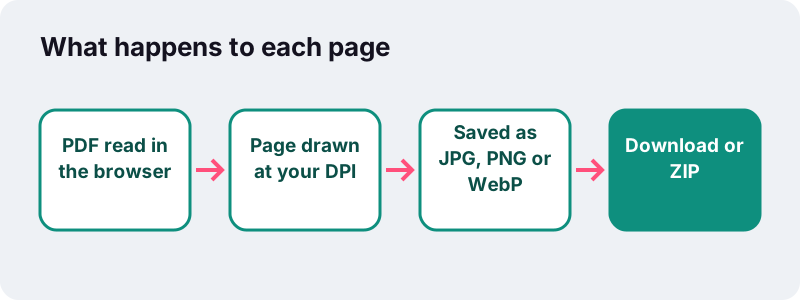
This PDF to JPG converter draws each page of your document as a picture and saves it as a JPG, PNG or WebP file. You choose the sharpness (72, 150 or 300 DPI) and which pages you want. One page gives you one image; several pages arrive together in a ZIP file.
Everything runs in the browser tab you are looking at. The page reads your PDF from your own storage, renders it with the open-source PDF.js engine, and hands the finished images straight back to you. When the job ends you see how long it took and the line 0 bytes uploaded.
- Input: one PDF at a time, any page size.
- Output: JPG, PNG or WebP, one image per page.
- Resolution: 72 DPI (screen), 150 DPI (standard) or 300 DPI (print).
- Pages: all of them, or a list such as
1-3, 7. - Cost: free, no account, no watermark added to your images.
How do you convert PDF to JPG in four steps?
Pick the file, set three options, press one button and save the result. The whole process takes four taps on a phone and four clicks on a computer, with no installation.
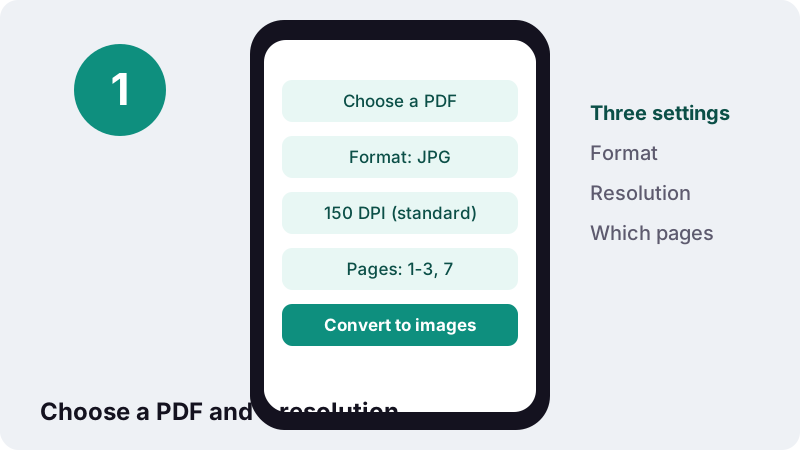
- Tap Choose a PDF or drop the file onto the box. A preview grid of the pages appears.
- Under Format, keep JPG or switch to PNG or WebP. Under Resolution, pick 72, 150 or 300 DPI.
- Leave Pages empty for the whole document, or type the pages you need, for example
2, 5-6. - Press Convert to images, wait for the progress line, then tap the download button. Several pages come as one ZIP.
If the file is password-protected, the tool stops and asks you to remove the password in your PDF reader first. It cannot open locked documents.
Which resolution should you choose: 72, 150 or 300 DPI?
Use 150 DPI for most jobs, 72 DPI when the image only needs to look right on a screen and stay light, and 300 DPI when you plan to print it or zoom deep into small text. The setting decides how many pixels each inch of the page becomes.
The arithmetic is simple. An A4 sheet measures 210 × 297 mm, which Wikipedia's paper-size article gives as 8.27 × 11.69 inches. Multiply each side by the DPI and you get the picture's size in pixels. A US Letter page is 8.5 × 11 inches, so it works the same way.
| Resolution | A4 page (8.27 × 11.69 in) | US Letter (8.5 × 11 in) | Megapixels (A4) | Good for |
|---|---|---|---|---|
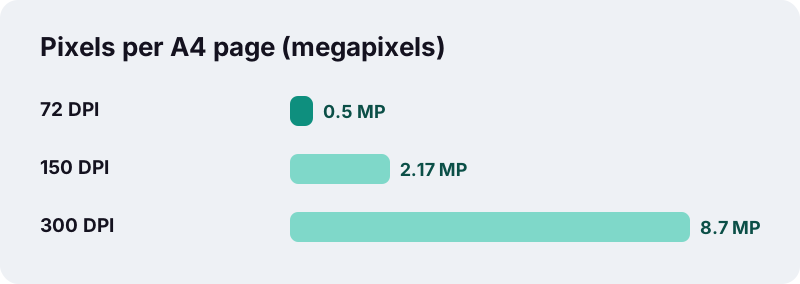
| 72 DPI (screen) | 595 × 842 px | 612 × 792 px | 0.50 MP | Thumbnails, quick previews, chat |
| 150 DPI (standard) | 1,240 × 1,754 px | 1,275 × 1,650 px | 2.17 MP | Reading on phones and laptops, slides, web pages |
| 300 DPI (print) | 2,480 × 3,508 px | 2,550 × 3,300 px | 8.70 MP | Printing, fine print, zooming into drawings |
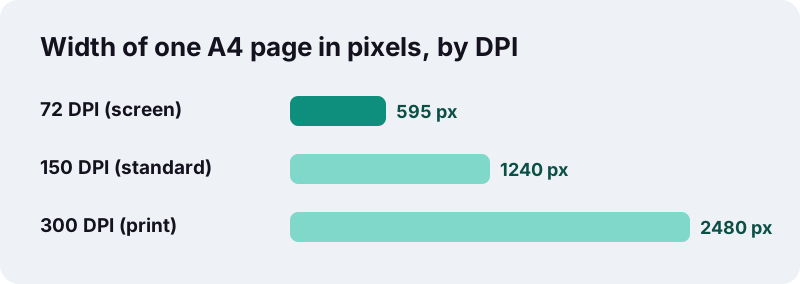
Notice what happens to the pixel count. Going from 150 to 300 DPI doubles the width and the height, so each image holds four times as many pixels. Expect bigger files and a longer wait on a phone, especially for documents with many pages.
Why can a PDF page become any size of image?
Most PDF text and drawings are stored as shapes and instructions, not as pixels, so the page can be drawn at whatever resolution you ask for. That is why the same page can produce a small preview or a large print-ready picture without looking blurry.
“This model enables the description of text and graphics in a device-independent and resolution-independent manner at a complete, precise and professional level.”
There is one exception. A scanned PDF is already a photograph of paper, so its detail is fixed when it was scanned. Converting a 200 DPI scan at 300 DPI makes a bigger image, but it cannot invent detail the scanner never captured. For scans, 150 DPI is usually the sensible choice.
DPI itself is borrowed from printing. Wikipedia's article on dots per inch explains that a digital image has no physical size of its own: the pixels-per-inch number only tells a printer how large to print it.
JPG, PNG or WebP: which format should you save?
Choose JPG when the image must open everywhere and stay compact, PNG when you need every pixel of text and lines kept exactly, and WebP when the picture is going on a website and you want the smallest file. All three are standard formats that current browsers display.
| Format | Compression | Transparency | Strength | Watch out for |
|---|---|---|---|---|
| JPG (JPEG) | Lossy (discrete cosine transform) | No alpha channel | Most widely used still-image format; compact for photos | Can blur sharp edges in charts and small text |
| PNG | Lossless | Full alpha channel | Exact reproduction of text, lines and diagrams | Files are larger, especially for photo-heavy pages |
| WebP | Lossy or lossless | Supported | Lossy WebP is on average 25–35% smaller than JPEG at similar quality (MDN) | Some older programs and print shops do not accept it |
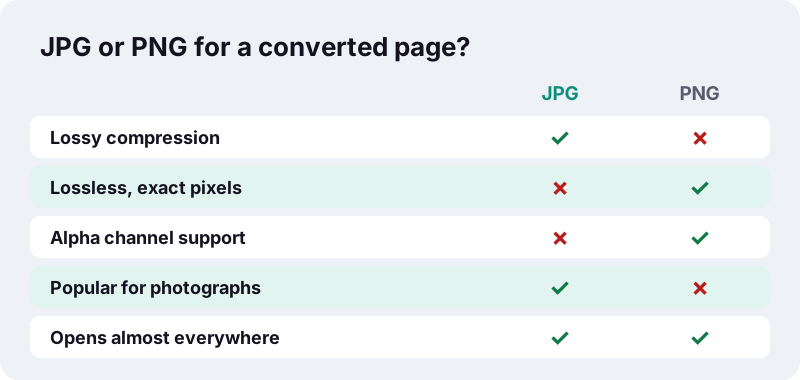
MDN puts the trade-off for JPEG plainly, and it matters for documents, because most PDF pages are text rather than photographs:
“It's particularly useful for photographs; applying lossy compression to content requiring sharpness, like diagrams or charts, can produce unsatisfactory results.”
What quality does the JPG and WebP output use?
The tool saves JPG and WebP at a fixed quality of 0.9 on the browser's 0 to 1 scale, which keeps text crisp while trimming file size. JPG and WebP pages get a white background. PNG is lossless, so it has no quality setting at all.
How do you convert only some pages of a PDF?
Type the page numbers in the Pages box before you press the button. Leave the box empty and every page is converted. Separate items with commas and use a hyphen for a run of pages.
| You type | Pages you get | Typical reason |
|---|---|---|
| (empty) | Every page | Turning a whole brochure into images |
1 | Page 1 only | A cover image or a thumbnail |
2, 5 | Pages 2 and 5 | Two charts from a report |
3-6 | Pages 3, 4, 5 and 6 | One chapter for a slide deck |
1-2, 9 | Pages 1, 2 and 9 | Mixed picks from a long file |
Want the pages as a separate PDF instead of pictures? Use Split PDF to extract them, which keeps the text selectable. To throw pages away first, there is also Remove pages.
Where do the images go after you convert PDF to JPG?
They land wherever your browser saves downloads. A single page arrives as one image; two or more pages arrive as a ZIP archive holding one image per page, named after your file with the page number added, such as report-page-3.jpg.
| Device | Where the download usually goes | Opening the ZIP |
|---|---|---|
| iPhone / iPad (Safari) | Files app → Downloads | Tap the ZIP in Files to unpack it |
| Android (Chrome) | Downloads folder | Tap the ZIP in the Files app to extract |
| Windows | Downloads folder | Right-click → Extract All |
| Mac | Downloads folder | Double-click the ZIP |
The file names keep the original page numbers even when you skip pages, so -page-9 really is page 9 of the source document. That makes it easy to match an image back to the PDF later.
When is a PDF to JPG conversion the right move?
Convert to images whenever the place you are sending the page accepts pictures but not PDFs, or when you want one page to show up instantly without opening a reader. Common cases:
- Messaging apps and social posts: a JPG previews inline, while a PDF often shows as a file icon.
- Upload forms that ask for an image: some portals want a JPG of a certificate or ID page rather than a PDF.
- Slides and documents: drop a chart or a contract clause into a presentation as a picture.
- Websites and online stores: show a menu, a flyer or a product sheet as WebP so it loads fast.
- Thumbnails: a 72 DPI image of page 1 makes a light cover preview.
- Annotating: photo editors and drawing apps open images more easily than PDFs.
Going the other way, from photos to a document, is a job for JPG to PDF. And if you want the whole document as one tall picture for a chat, PDF to long image stacks every page into a single file.
Is it safe to convert a private PDF here?
Yes, in the sense that the file is never sent anywhere. The page uses the browser's FileReader interface, which MDN describes as reading files stored on the user's computer that the user has explicitly selected. Rendering and encoding then happen in the same tab.
Many online PDF services work differently: they upload your document to their servers, convert it there and send the images back. For a bank statement, a medical letter or an ID scan, keeping the file on your own device removes that whole step.
- No account and no email address requested.
- No copy of your PDF or images is stored by us, because none is ever received.
- After the page has loaded, the conversion itself does not need to send anything.
- Closing the tab clears the document from the page's memory.
You can read the details on our privacy page.
What does this converter not do?
It turns pages into pictures, and only that. Knowing the limits up front saves a wasted attempt:
- No text recognition (OCR): the images contain pictures of text, not editable or searchable words.
- No Word, Excel or PowerPoint output: only JPG, PNG and WebP.
- No password removal: locked PDFs must be unlocked in your reader first.
- One PDF per run: convert files one after another, or merge them first with Merge PDF.
- No custom DPI: the choices are 72, 150 and 300.
Speed depends on your device. A short text document converts in moments; a long scan at 300 DPI asks a lot of a phone's memory, because every page becomes a large picture before it is saved.
How do you get the sharpest images from a PDF?
Match the resolution to the job, prefer PNG for text-heavy pages you will zoom into, and convert only the pages you need. A few practical tips:
Is the small text blurry?
Switch from 72 or 150 DPI to 300 DPI, or choose PNG. Thin serif fonts and footnotes lose the most at low resolution, and lossy compression can soften the edges of letters.
Are the files too big to send?
Drop to 150 or 72 DPI, or pick WebP if the receiver can open it. If you only need a smaller PDF rather than images, Compress PDF is the better tool.
Is a page sideways in the images?
The images follow the orientation saved in the PDF. Fix the page first with Rotate PDF, then convert again.
Does the phone struggle with a long document?
Convert in batches using the Pages box, for example 1-10 and then 11-20, or use a computer for very large scans at 300 DPI.
Which other free PDF tools work well alongside this one?
Every tool on ilovepdfe runs in the browser in the same way, with no upload and no sign-up. These are the ones people most often reach for before or after turning pages into pictures:
Frequently asked questions
Is this PDF to JPG converter really free?
Yes. There is no price, no account, no daily limit set by us and no watermark added to the images. The only practical limit is your device's memory on very long documents at 300 DPI.
Are my files uploaded during the conversion?
No. The PDF is read and rendered inside your browser tab, and the images are created on your device. The result screen shows 0 bytes uploaded.
What DPI should I use?
150 DPI suits screens and most uploads (an A4 page becomes about 1,240 × 1,754 pixels). Use 300 DPI for printing or fine print, and 72 DPI for small previews.
Can I convert just one page of a PDF to an image?
Yes. Type the page number in the Pages box, for example 4. You can also type ranges like 2-5 or lists like 1, 3, 8.
Why did I get a ZIP file?
When you convert two or more pages, the images are packed into one ZIP so you only download once. Unzip it in your Files app, File Explorer or Finder to see one image per page.
Should I choose JPG or PNG?
JPG is compact and opens everywhere. PNG is lossless, so text and line drawings stay exact, but files are larger. For photo-heavy pages JPG is usually enough; for small print, PNG looks cleaner.
Can I edit the text in the JPG afterwards?
Not as text. The images contain a picture of the page. This tool does not do OCR, so the words are pixels, not editable characters.
Does it work on iPhone and Android?
Yes, in Safari, Chrome and other current mobile browsers. Downloads go to Files → Downloads on iPhone and to the Downloads folder on Android. Long 300 DPI jobs are slower on phones.
Can I convert a password-protected PDF?
No. The tool shows a message asking you to remove the password in your PDF reader first, then try again.
Is ilovepdfe the same as iLovePDF?
No. ilovepdfe is an independent site and is not affiliated with iLovePDF, which is a separate company. The practical difference is that ilovepdfe processes your files in your browser instead of uploading them.
Sources
- PDF (Portable Document Format) Family — Library of Congress
- Image file type and format guide — MDN Web Docs
- HTMLCanvasElement: toBlob() method — MDN Web Docs
- FileReader — MDN Web Docs
- Paper size — Wikipedia
- Dots per inch — Wikipedia
- WebP — Wikipedia