How to merge PDF files
- Choose PDF files. Tap Choose PDF files, or drop two or more PDFs onto the box.
- Set the order. Use the up and down arrows to arrange the files; the top file becomes the first pages. Remove extras with ×.
- Merge PDF. Press Merge PDF. Your browser joins the pages on your device.
- Download. Tap Download merged.pdf and open it to check the order.
Merge PDF files in three moves
To merge PDF files here, choose two or more documents, put them in the order you want with the ↑ and ↓ arrows, and press Merge PDF. A single file called merged.pdf appears for download a moment later.
There is no account, no daily quota and no watermark stamped on the result. The page loads a small PDF engine into your browser tab, and that engine does all of the work using your phone's or computer's own processor.
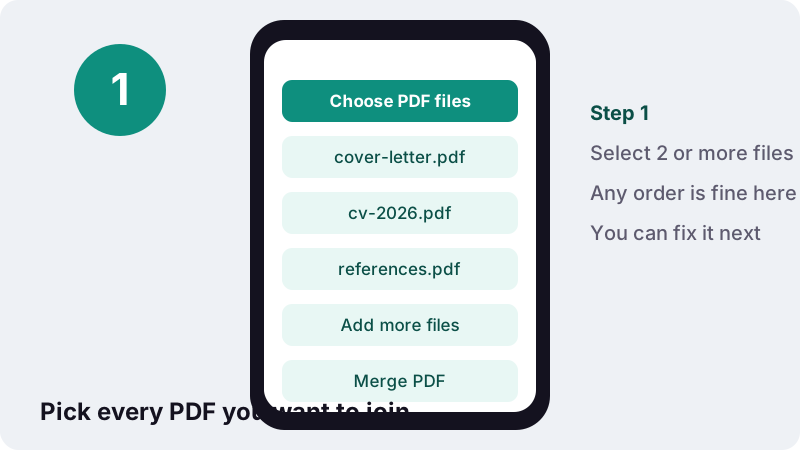
The first file in the list supplies the first pages of the result, the second file follows straight after it, and so on down the list. Nothing is re-typed or re-drawn: each page is copied across exactly as it was in its source file.
How do I merge 2 PDFs into one?
Open this page, tap Choose PDF files, select both documents and tap Merge PDF. If they land in the wrong order, press ↓ on the top one before merging. That is the whole job, and it works the same way for two files or twenty.
- Tap Choose PDF files, or drop the files onto the box on a computer.
- Select both PDFs. Most file pickers let you select several files in one go; if yours does not, pick one and use Add more files for the other.
- Check the list. The file at the top becomes the start of the new document.
- Use ↑ or ↓ to swap them if needed, then tap Merge PDF.
- Tap Download merged.pdf and open it once to check the page order.
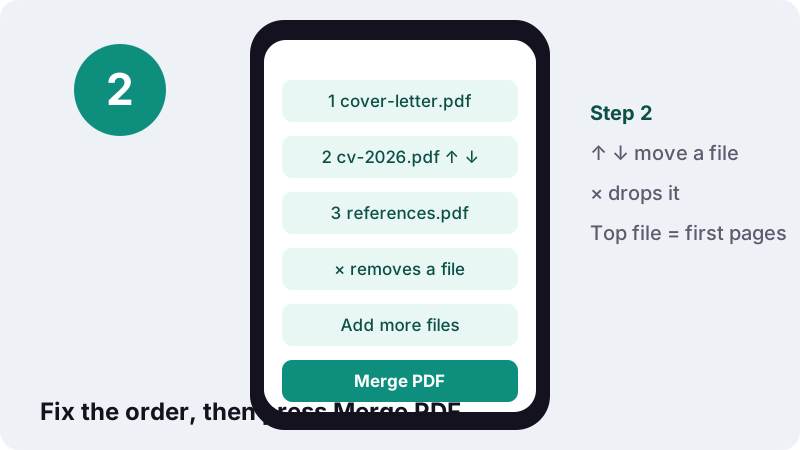
Picked only one file? The button stays greyed out and the page asks you to add at least 2 files. Use Add more files to bring in the second one without starting over.
What happens to my files when I merge PDF documents here?
They are read by your browser and never sent anywhere. The web page asks your browser for the bytes of each file you picked, joins the pages in memory, and hands the finished file straight back to you. Our server only delivered the page itself.
This is ordinary web technology, not a special trick. Browsers have a standard interface for reading a file the visitor chose, and Mozilla's developer documentation describes it plainly:
“The FileReader interface lets web applications asynchronously read the contents of files (or raw data buffers) stored on the user's computer, using File or Blob objects to specify the file or data to read.”
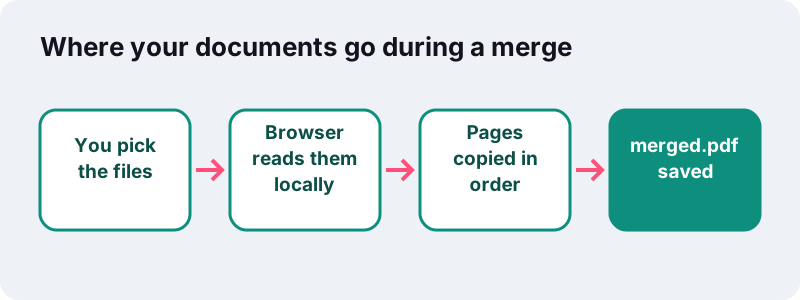
When the merge finishes, a line under the download button reports how long it took, how much data was read and that 0 bytes were uploaded. Many online PDF services upload documents to their servers to process them; here that step simply does not exist.
That matters for the files people most often combine: payslips, bank statements, medical letters, signed contracts and ID scans. If you are on a shared computer, delete the downloaded copy when you are done, because the merged file is saved wherever your browser keeps downloads.
Does merging change the quality, text or layout?
No. The merge copies each page object from the source PDFs into a new file, so text stays selectable and searchable, vector drawings stay sharp and photos keep their original resolution. Nothing is compressed or converted along the way.
That follows from how the format is built. The Library of Congress describes PDF as a page-oriented format whose imaging model describes text and graphics in a device-independent and resolution-independent way, so a page can be lifted into another file intact (PDF format description).
- Kept: page content, fonts, images, page size and orientation of every page.
- Kept per page: a landscape page stays landscape even if its neighbours are portrait.
- Not carried over: the bookmark sidebar of the original files. If you rely on bookmarks, add them again in your desktop reader.
- Check after merging: fillable form fields. Fill in and save forms before merging, because fields from separate files can stop behaving like a single form.
Because nothing is re-encoded, the merged file is usually close to the sizes of the inputs added together. Two 400 KB letters give you roughly an 800 KB result, not something dramatically smaller.
How do I put the files in the right order?
Use the arrows next to each file. Every row in the list shows a thumbnail of the file's first page, its name and its size, so you can tell similar documents apart before pressing the button.
| Control | What it does | When to use it |
|---|---|---|
| ↑ (Move up) | Swaps the file with the one above it | A document that should come earlier |
| ↓ (Move down) | Swaps the file with the one below it | Sending an appendix to the end |
| × (Remove) | Takes the file out of the list | You picked the wrong file |
| Add more files | Opens the picker again and appends files | You forgot one, or files live in different folders |
| Start over | Clears everything after a merge | Beginning a new, unrelated job |
A tip for long batches: rename the files with a number prefix such as 01-, 02- before you pick them. Most file pickers then list them in that order, which saves a lot of tapping on the arrows.
The arrows move whole files only. To change the position of individual pages after merging, run the result through the page organizer, which shows every page as a thumbnail.
How do I merge PDF files on iPhone, Android, Windows or Mac?
Open this page in the browser you already have: Safari on iPhone, Chrome on Android, Edge or Chrome on Windows, Safari or Chrome on a Mac. The tool behaves the same everywhere. Each system also has its own built-in options, summarised below from the makers' support pages.
| Device | Built-in route (from official help) | With ilovepdfe |
|---|---|---|
| iPhone | Preview app: open a PDF, touch and hold a thumbnail, Insert from File | Safari → Choose PDF files → pick from Files |
| Android | Chrome opens and annotates PDFs (Android 12 and up); no merge described | Chrome → Choose PDF files → pick from Downloads or Drive |
| Windows | Microsoft Print to PDF creates PDFs from other formats; no merge described | Edge or Chrome → drop the files on the box |
| Mac | Preview: drag thumbnails or a whole PDF into another PDF's sidebar | Safari or Chrome → drop the files on the box |
iPhone and iPad
Apple's iPhone guide for Preview says to open a PDF, show the thumbnails, touch and hold one and choose Insert from File (Apple Support). That works for adding one document into another. With several files, picking them all at once on this page is quicker than inserting them one by one.
Android phones
Google's help for Chrome on Android lists opening, searching and annotating PDFs on Android 12 and up (Google Chrome Help). It does not describe joining files, so a browser tool fills that gap. Google's help also notes that downloaded files are listed under More, then Downloads, in Chrome, which is where merged.pdf ends up.
Windows PCs
Microsoft describes Microsoft Print to PDF as a way to create a PDF from other file formats by using a printer (Microsoft Support). It turns one printable document into a PDF, but we found no merge command for existing PDFs in Microsoft's support pages. Drag the files from File Explorer onto this page instead.
Mac computers
Preview on the Mac can combine PDFs by dragging thumbnails between open documents, and Apple warns that Preview saves changes automatically, so you should duplicate the originals first (Apple Support). This page never touches your originals; it writes a separate merged.pdf.
Which jobs need a merged PDF?
Mostly the ones where someone asks for “a single PDF”. Upload forms with one file slot, accountants who want one attachment per month, and teachers who collect one submission per student are the usual reasons people search for a way to merge PDF files.
| Job | Typical files | Order that reviewers expect |
|---|---|---|
| Visa or residence application | Form, passport scan, bank statements, invitation letter | Follow the checklist order printed on the application |
| Job application | Cover letter, CV, certificates | Letter first, CV second, proof last |
| Monthly expenses | Receipts scanned to PDF, card statement | Statement first, then receipts by date |
| Course portfolio | Assignment PDFs from several apps | Chronological or by module number |
| ID front and back | Two one-page scans | Front, then back |
| Rental file | Payslips, employment letter, ID | Whatever the agency lists, top to bottom |
Photos rather than PDFs? Phone pictures of receipts or ID cards first need turning into PDF pages. The JPG to PDF converter can put several photos into one PDF directly, which often removes the need to merge at all.
What if the merged PDF is too large to upload?
Shrink it after merging with Compress PDF, or use a preset such as compress to 1 MB. Merging adds file sizes together, so a pack of scans can easily cross the limit of an application portal that accepts only one small file.
In our tests, a 5-page scanned contract at 200 DPI (2,522 KB) came down to 895 KB with the 1 MB target in about 2 seconds on a normal Windows PC. Heavier photo pages take longer, especially on phones.
Compressing to a target re-draws pages as images, which means the text is no longer selectable afterwards. If you need searchable text, try the lossless first step alone, or send the documents as two merged halves instead of one.
Can I merge only some pages from each PDF?
Yes, in two short passes. The merge step takes whole files, so trim each source first, then join the trimmed copies. All the tools involved run in the same browser tab and keep files on your device.
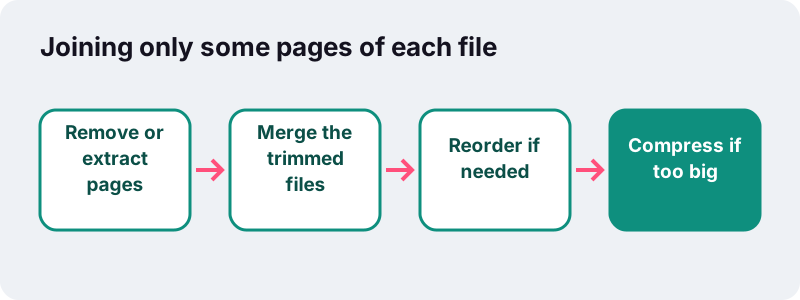
- Drop unwanted pages with Remove pages, or pull out just the pages you need with the Extract mode of Split PDF.
- Bring the trimmed files back here and merge them in the right order.
- If a page still sits in the wrong place, fix it in the organizer.
- Compress at the end if the portal has a size cap.
Example: a 12-page bank statement where only pages 1 and 2 matter, plus a 3-page payslip set. Extract pages 1-2 from the statement, then merge PDF files in this order: payslips, statement extract. The result has five pages instead of fifteen.
What can't this merge tool do yet?
It cannot open password-protected PDFs, and it does not pick individual pages inside the merge screen. Being upfront about the gaps saves you time:
- Locked files: a PDF that needs a password to open shows an error. Remove the password in your PDF reader, then add the file again.
- Damaged files: if a PDF cannot be opened at all, the tool says so instead of producing a broken result.
- No drag-and-drop sorting: files move with the arrow buttons only.
- No cloud import: files come from your device's own picker. On phones, that picker usually shows cloud drives you are signed in to.
- Wrong file types are skipped: Word or image files dropped on the box are ignored with a message; convert images first.
Very large batches depend on your device's memory, because everything happens locally. If a phone struggles with dozens of big scans, merge them in two groups and then merge the two results.
How does this compare with a desktop app?
A desktop editor gives you more page-level control; this page gives you the same result on any device with nothing installed. The comparison below uses Preview on the Mac because Apple documents its behaviour openly.
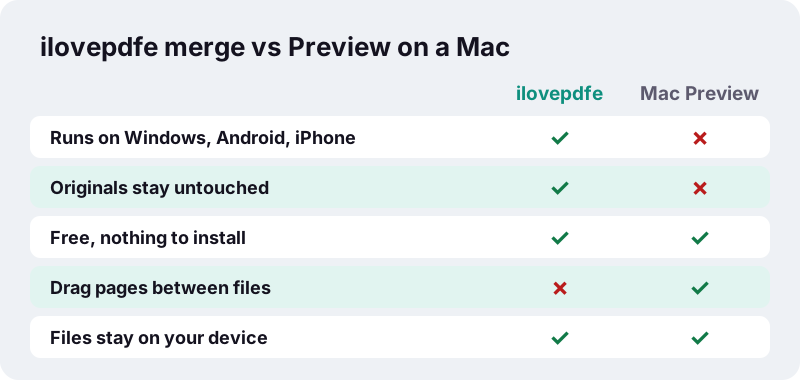
Preview lets you drag single pages between documents, which this tool does not. On the other hand, Preview edits the open file and saves automatically, while every job here writes a new file. On Windows and Android there is no built-in equivalent to compare against, according to the help pages we read.
What do the error messages mean?
Most problems come from the files rather than the tool. Here is what each message means and what to do about it.
| Message or symptom | Likely cause | Fix |
|---|---|---|
| Add at least 2 files. | Only one PDF is in the list | Use Add more files |
| This PDF is password-protected… | The file is encrypted | Remove the password in your reader first |
| Could not open this file… | File is damaged or not really a PDF | Re-download or re-export it |
| file(s) skipped… | A non-PDF was dropped on the box | Convert it to PDF first |
| Pages in the wrong order | Files were picked out of sequence | Use ↑ ↓ before merging, or reorder pages afterwards |
If nothing seems to happen after tapping Download, look in the list of downloads in your browser before running the merge again; the file is usually already saved there.
More tools for the same documents
After you merge PDF files, the next step is often numbering, rotating or shrinking the result. Each tool below works the same private way, in your browser.
For example, add page numbers to a merged application pack so a reviewer can refer to “page 7”, or rotate the one scan that came out sideways. Our about page explains how the site is built.
Frequently asked questions
How do I merge 2 PDFs into one for free?
Tap Choose PDF files, select both PDFs, check that the one you want first is at the top, and tap Merge PDF. Download merged.pdf. It is free, needs no account and adds no watermark.
Are my files uploaded when I merge PDF documents?
No. Your browser reads the files you choose and joins them on your device. The result screen confirms 0 bytes uploaded. Only the web page itself comes from our server.
How many PDFs can I merge at once?
There is no fixed limit in the tool. The practical limit is your device's memory: a computer handles big batches easily, while a phone may slow down with dozens of large scans. Merge in groups if that happens.
Will the merged PDF lose quality?
No. Pages are copied as they are, without re-compressing images or converting text, so the merged file looks exactly like the originals and text stays selectable.
Can I change the order of pages, not just files?
The merge screen orders whole files with arrows. To move single pages, open the merged file in Organize pages and move pages with the arrows under each thumbnail.
Why does it say my PDF is password-protected?
The file is encrypted and needs a password to open. The tool cannot remove passwords. Open it in your PDF reader, save a copy without the password, and add that copy.
Can I merge PDF files on my phone?
Yes. The page works in Safari on iPhone and Chrome on Android. Choose the files from the picker, set the order and download. The merged file is saved wherever your browser keeps downloads.
Do bookmarks and form fields survive a merge?
Page content always survives. The bookmark sidebar of the original files is not carried over, and fillable fields from separate files may stop working together, so fill forms before merging.
Is ilovepdfe the same as iLovePDF?
No. ilovepdfe is an independent site and is not affiliated with iLovePDF, which is a separate company. The practical difference is that ilovepdfe processes your files in your browser instead of uploading them.
Can I merge images and PDFs together?
Not in one step. Turn the images into a PDF with the JPG to PDF tool first, then merge that PDF with your other documents.
Sources
- FileReader — MDN Web Docs (Mozilla)
- Combine PDFs in Preview on Mac — Apple Support
- Add, delete, rotate, move, or crop PDF pages in Preview on iPhone — Apple Support
- Manage PDFs in Chrome (Android) — Google Chrome Help
- Print from Chrome (Android) — Google Chrome Help
- Print a schedule in Shifts (Microsoft Print to PDF) — Microsoft Support
- PDF (Portable Document Format) Family — Library of Congress
- PDF — Wikipedia