How to add page numbers to a PDF
- Choose your PDF. Tap Choose PDF file and select one document from your device. It is read by your browser and not uploaded.
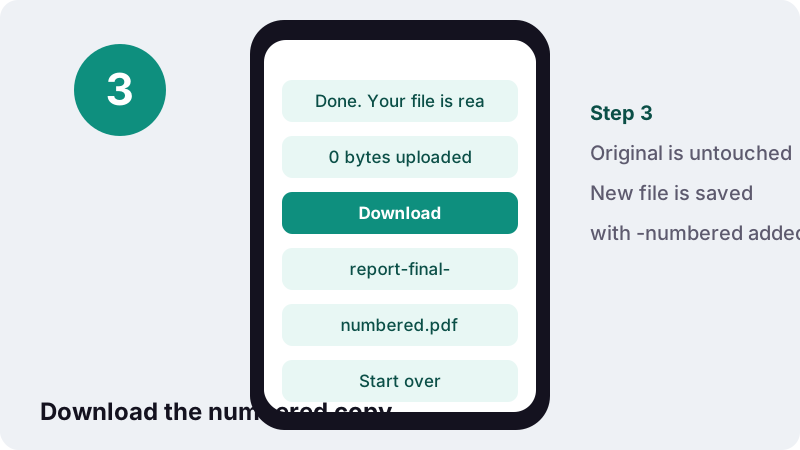
- Pick position and format. Select one of six positions and a format: 1, Page 1, 1 / 10 or Page 1 of 10.
- Set first number and size. Change First number, Text size (6 to 48 pt) and, if needed, tick Don't number the cover page.
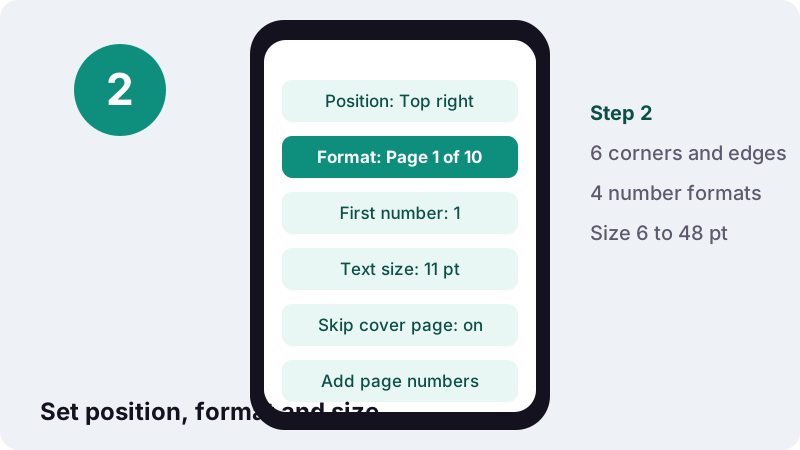
- Add page numbers and download. Press Add page numbers, then tap Download to save the file ending in -numbered.pdf.
How to add page numbers to PDF files in four steps
Choose your PDF, set where the number goes and how it reads, press Add page numbers, then download the new copy. The whole job runs inside the browser tab, and your original file is left exactly as it was.
- Tap Choose PDF file and pick one document from your phone, tablet or computer.
- Pick a Position (six choices) and a Format, for example “Page 1 of 10”.
- Adjust First number, Text size and, if you need it, tick Don't number the cover page.
- Press Add page numbers, wait for the green proof line, then tap Download.
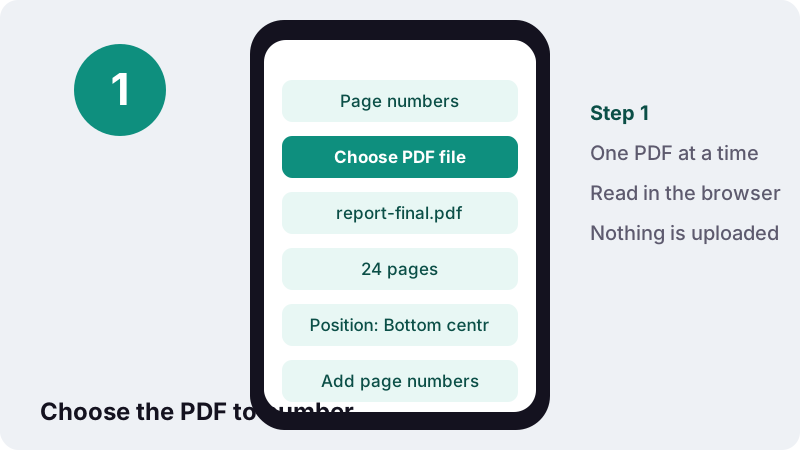
The downloaded file keeps your original name with -numbered added, so report-final.pdf becomes report-final-numbered.pdf. Nothing is overwritten, which makes it easy to try a second layout if the first one does not look right.
Which positions can you put the page number in?
There are six positions: bottom centre, bottom right, bottom left, top centre, top right and top left. Bottom centre is selected when the tool opens because it is the most common placement for reports and court documents.
| Position | Where it lands | Typical use |
|---|---|---|
| Bottom centre (default) | Centred, about 1 cm above the bottom edge | Court exhibits, contracts, general reports |
| Bottom right | Right-aligned, about 1 cm from the right and bottom edges | Single-sided business documents, invoices |
| Bottom left | Left-aligned, about 1 cm from the left and bottom edges | Forms whose right corner already holds a reference |
| Top centre | Centred, about 1 cm below the top edge | Scripts, minutes, drafts that get stapled at the bottom |
| Top right | Right-aligned near the top corner | Academic papers that put the number in the header |
| Top left | Left-aligned near the top corner | Pages where the bottom margin is full of footnotes |
The number is placed relative to each page's own size, so a document that mixes A4, US Letter and wide landscape pages still gets the number in the same corner on every sheet.
Which number formats can you choose?
You can print a bare number, “Page” plus the number, a fraction such as “3 / 12”, or the full “Page 3 of 12”. The total is calculated for you from the page count, so you never have to type it.
| Format option | Page 3 of a 12-page file shows | Good for |
|---|---|---|
| 1 | 3 | Books, slides, anything where space is tight |
| Page 1 | Page 3 | Letters and reports read by non-specialists |
| 1 / 10 | 3 / 12 | Handouts, so readers can tell if a sheet is missing |
| Page 1 of 10 | Page 3 of 12 | Contracts, application packs, faxed or printed sets |
The “of total” formats matter more than they look. When a printed set comes apart, “Page 7 of 12” tells the reader at once that five sheets are still somewhere, while a bare “7” does not.
The words “Page” and “of” are printed in English. Translated labels such as “Seite 3 von 12” are not available yet.
How do “First number” and the cover page option work together?
First number sets the value printed on the first numbered page; any whole number from 0 to 99,999 is accepted. Don't number the cover page leaves page 1 blank and starts counting on the second sheet.
| Settings (10-page file) | Page 1 | Page 2 | Last page | “1 / 10” format shows |
|---|---|---|---|---|
| First number 1, cover numbered | 1 | 2 | 10 | 1 / 10 … 10 / 10 |
| First number 1, skip cover | (nothing) | 1 | 9 | 1 / 9 … 9 / 9 |
| First number 21, cover numbered | 21 | 22 | 30 | 21 / 30 … 30 / 30 |
| First number 0, cover numbered | 0 | 1 | 9 | 0 / 9 … 9 / 9 |
In the fraction formats the second figure is the last number printed, not the physical page count. That is what you want when a file is chapter two of a longer work: start at 21 and the last page reads “30 / 30”, matching the full document.
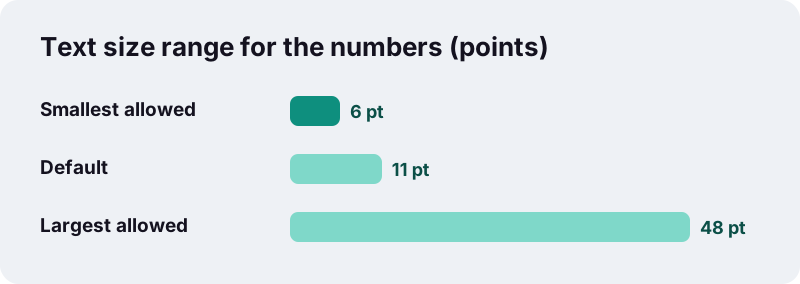
Text size runs from 6 to 48 points, with 11 points as the default. Body text in most documents is 10 to 12 points, so the default blends in; go up to 14 or 16 for slides viewed on a projector.
What does the stamped number look like?
The number is set in Helvetica, one of the standard PDF fonts, in a dark grey close to black. It is written into each page as real text, so it prints sharply at any zoom level and can be selected or found with search.
- Font: Helvetica, regular weight. The PDF format lists Helvetica among its fourteen standard fonts.
- Colour: fixed dark grey; there is no colour picker for numbers yet.
- Background: none. The number sits on top of whatever is already in that spot.
- Pages covered: every page, or every page except the first if you skip the cover.
Because there is no white box behind the digits, a page that already has text or a logo in the chosen corner will show both overlapping. If that happens, run the tool again on the original and pick a different corner or a smaller size.
Is Bates numbering supported?
No. This tool prints ordinary page numbers, not Bates numbers. It cannot add a case prefix such as “SMITH-”, pad numbers with zeros like 000123, add a suffix, or keep one running counter across several separate files.
Bates numbering is a legal and records-management convention in which every page in a production set gets a unique identifier. Wikipedia notes that the scheme can be numeric or alphanumeric, and that conventions vary:
“There is no standard method for numbering documents, nor is there a standard type face used for such numbers.”
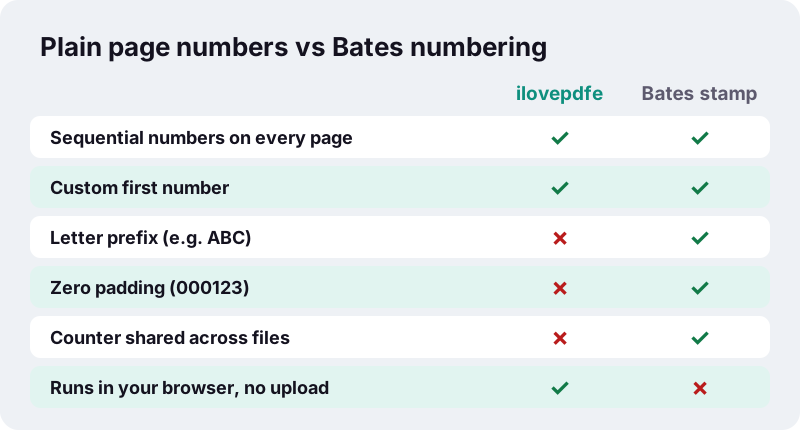
If your court, regulator or opposing counsel has asked for Bates-stamped discovery, you need a dedicated Bates tool. Plain sequential numbers are fine for many other legal tasks, such as exhibits and bundles, which the next section covers.
Add page numbers to PDF bundles for court and legal work
Many court rules ask for continuous, plain page numbers rather than Bates stamps. In England and Wales, for example, Practice Direction 32 asks that exhibit pages be “numbered consecutively at bottom centre”, which is this tool's default position.
“The trial bundle should be paginated (continuously) throughout, and indexed with a description of each document and the page number.”
A workable routine for a small bundle:
- Put the documents in order and join them with Merge PDF.
- Drop duplicates or blank scans with Remove pages.
- Number the merged file at bottom centre in the plain “1” format.
- Write the index from the numbered copy so the page references match exactly.
Always check your own court's or tribunal's current rules before filing; requirements differ between jurisdictions and change over time. The tool only places numbers; it does not check a bundle against any rule.
Page numbers for theses, reports and coursework
For student work, the usual request is Arabic numerals on the main text, often with the title page left unnumbered. Tick Don't number the cover page and the body starts at 1 on the second sheet.
Some style guides want the front matter in lower-case Roman numerals (i, ii, iii) and the main text restarting at 1. Wikipedia's page numbering article describes this book convention. Roman numerals are not offered here, but you can still restart the count:
- Use Split PDF with ranges, for example “1-6, 7-48”, to separate the front matter from the body.
- Number only the body file, starting at 1.
- Join the two parts again with Merge PDF; the front matter stays unnumbered.
If your department insists on Roman numerals for the preliminary pages, add those in the word processor before exporting to PDF, then use this tool only where the original file has no numbers at all.
Can you number several PDFs as one sequence?
Yes, in two ways. The simplest is to merge the files first and number the result once. The other is to number each file separately and set First number so that each file continues where the previous one stopped.
| File | Pages | First number to type | Numbers printed |
|---|---|---|---|
| Part A | 18 | 1 | 1 to 18 |
| Part B | 25 | 19 | 19 to 43 |
| Part C | 7 | 44 | 44 to 50 |
The second method is handy when a portal wants each section as its own upload but reviewers read them as one document. Note the per-file totals: in the “1 / 10” format, Part B would end on “43 / 43”, not “43 / 50”.
Why your PDF is never uploaded
The page loads the PDF tools as JavaScript, and your browser does the work on your device. When you pick a file, the browser hands its contents to the page locally; no copy is sent to our server, because the site has no processing server.
This relies on a standard web feature. MDN's documentation of the FileReader interface explains that a page can read only files the user has explicitly selected, and the File API gives web apps access to those files' contents.
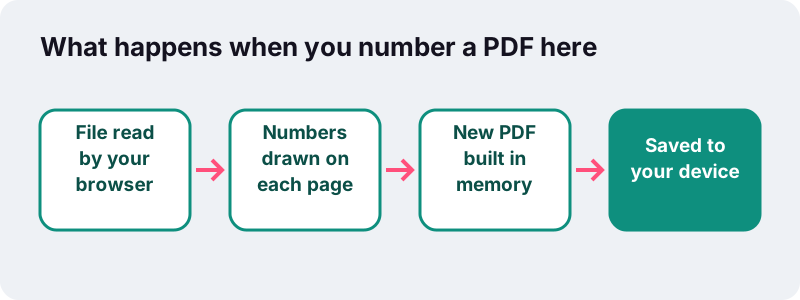
After each job a proof line reports the time taken and confirms “0 bytes uploaded”. That matters for contracts, medical letters or HR files you would rather not hand to a third party just to number the pages.
What can go wrong, and how do you fix it?
Most problems come from the source file rather than the numbering. Here are the cases we know about and what to do.
The number appears on the side of a page
Some PDFs show a page sideways by using a rotation setting instead of storing it in that orientation. The number is placed on the page's unrotated edge, so on those pages it can end up along a side. Check the result before sending it.
The PDF asks for a password
Password-protected PDFs cannot be opened here; you will see a message asking you to remove the password first. This site has no unlock tool, so open the file in the app that knows the password and save an unprotected copy.
The number is hidden or cut off
Rarely, a file shows only part of each page (a crop setting), and a corner number can fall outside the visible area. A dark scan can also swallow grey digits. Try a centre position or a larger size.
The file was compressed after numbering and the text is no longer selectable
That comes from compression, not numbering. The Light, Recommended and Strong levels of Compress PDF can redraw pages as images. The numbers stay visible, but they become part of the picture.
Can I add page numbers to PDF on a phone?
Yes. The tool runs in a normal mobile browser on iPhone, iPad and Android, as well as on Windows, macOS, Linux and Chromebooks. There is no app to install and no account to create.
| Device | Where to find your PDF | Where the numbered copy goes |
|---|---|---|
| iPhone / iPad | Files app, iCloud Drive or a mail attachment saved to Files | Your browser's download location, usually in Files |
| Android | Downloads or the Files app | Downloads |
| Windows / macOS / Linux | Any folder | Your browser's download folder |
Numbering is light work: it adds a little text to each page without re-drawing images, so even long documents finish quickly. Very large scanned files still depend on your device's free memory, especially on older phones.
What else can you do before or after numbering?
Numbers should go on last, once the page order is final. If you reorder pages afterwards, the printed numbers move with their pages and will be out of sequence.
- Turn sideways scans the right way up first with Rotate PDF, then check the number position on those pages.
- Mark drafts with a diagonal “DRAFT” using Watermark PDF; the number stays readable underneath.
- Need a smaller file for email? Run Compress PDF after numbering.
Frequently asked questions
Is this page numbering tool really free?
Yes. There is no charge, no sign-up and no limit on how many files you number. The site does not add its own watermark to your document either.
Does the tool support Bates numbering?
No. It prints plain sequential numbers in four formats. It cannot add letter prefixes, suffixes or zero padding such as 000123, and it does not share one counter across separate files. Use a dedicated Bates tool for discovery productions.
Can I start numbering from a number other than 1?
Yes. Type any whole number from 0 to 99,999 in First number. This is useful when a file continues an earlier document, for example a second volume that starts at page 251.
How do I leave the title page without a number?
Tick Don't number the cover page. Page 1 stays clean and counting starts on page 2 with your first number, so a 10-page file shows 1 to 9.
Can I choose the font or colour of the numbers?
Not yet. Numbers use Helvetica in dark grey. You can change the size from 6 to 48 points and choose one of six positions.
Can I number only some pages, such as pages 5 to 20?
Not directly. Every page is numbered, apart from the optional cover. To number a section only, split it off with Split PDF, number it, and merge the parts back together.
Are Roman numerals supported?
No, only Arabic digits (1, 2, 3). For front matter in i, ii, iii, add those numbers in your word processor before exporting, or leave the front matter unnumbered.
Will numbering reduce the quality of my PDF?
No. The original page content is kept as it is and the number is added as a small piece of text on top. Images are not re-compressed.
Is ilovepdfe the same as iLovePDF?
No. ilovepdfe is an independent website and is not affiliated with iLovePDF, which is a separate company. The practical difference is that ilovepdfe processes your files in your browser instead of uploading them.
Why do the numbers overlap text at the bottom of some pages?
The number is placed about 1 cm from the edge without a background box. If your document has footers or footnotes there, choose a top position or a smaller size and run the tool again on the original file.
Sources
- Practice Direction 32 – Evidence (Civil Procedure Rules) — Ministry of Justice (UK)
- Bates numbering — Wikipedia
- Page numbering — Wikipedia
- PDF (standard 14 fonts) — Wikipedia
- PDF (Portable Document Format) Family — Library of Congress
- File API — MDN Web Docs
- FileReader — MDN Web Docs