How to organize PDF pages
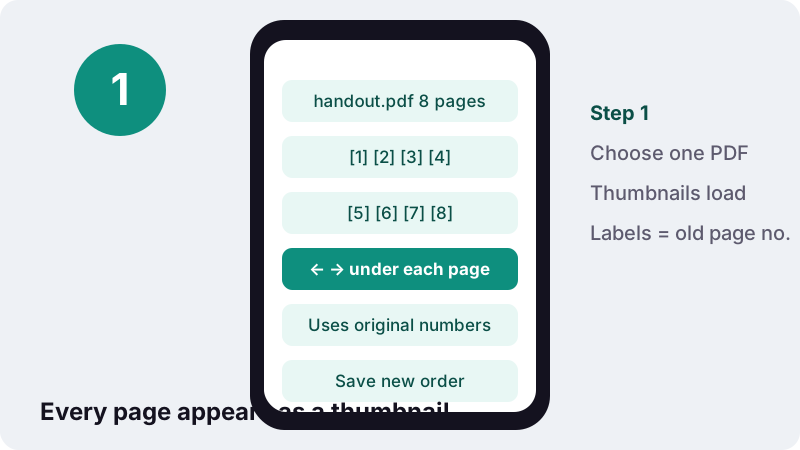
- Choose a PDF. Tap Choose a PDF or drop the file onto the box. Every page appears as a numbered thumbnail.
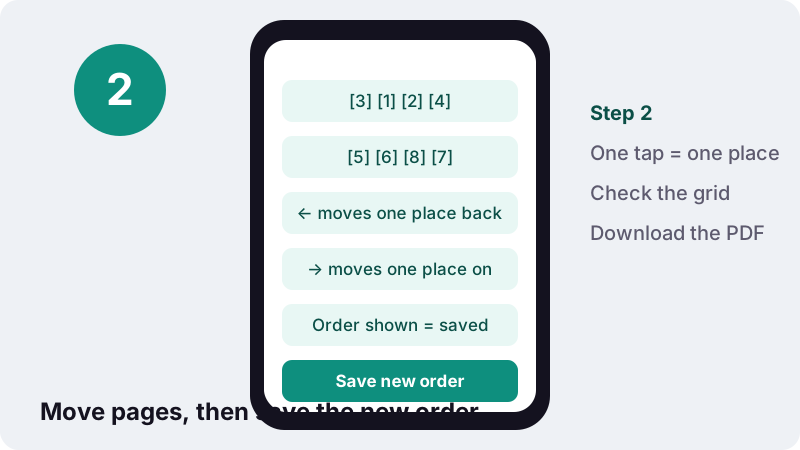
- Move pages. Tap ← or → under a page to move it one place back or forward. The grid shows the order that will be saved.
- Save new order. Press Save new order. Your browser writes the reordered PDF on your device.
- Download. Download the organized PDF and check the page order.
Organize PDF pages in two steps
To organize PDF pages here, choose the file, move pages with the ← and → arrows under each thumbnail, and press Save new order. You download a copy named after your file with -organized added; the original stays as it was.
Each thumbnail keeps the page's original number as its label. After a few moves you can still see where each page came from, which helps when you are following instructions such as “put old page 7 after page 2”.
How do the arrows reorder PDF pages?
Each tap swaps a page with its neighbour: ← moves it one place towards the start, → one place towards the end. The grid redraws after every tap, and the order you see is exactly the order that gets saved.
| Action | Taps needed | Example |
|---|---|---|
| Swap two neighbouring pages | 1 | Page 4 and page 5 were scanned the wrong way round |
| Move a page three places | 3 | A chart page that belongs after the next section |
| Bring the last page of 8 to the front | 7 | A cover sheet that was scanned last |
| Move page 40 of 60 to the front | 39 | Better done with the Extract trick below |
Honest limitation: there is no drag-and-drop yet, and you cannot insert new or blank pages. For small fixes the arrows are quick; for long jumps, use the typed-order method further down this page.
Why would I need to organize PDF pages?
Because PDFs are often assembled out of order. Scanners feed pages in whatever sequence they were stacked, merged files land in the order they were picked, and exported slides sometimes put the appendix first.
- Cover page at the back. The title sheet went through the scanner last.
- Two-sided originals scanned on a one-sided scanner. All fronts first, then all backs.
- Application packs. The form must come first, but it was merged in the middle.
- Handouts. A presenter changed the talk order and wants the PDF to match.
- Signed copies. The returned signature page needs to sit back in its original position.
In each case the pages themselves are fine; only their sequence is wrong. Reordering copies the pages into a new file without touching their content, so text, images and page sizes stay identical.
How do I fix a two-sided document scanned on a one-sided scanner?
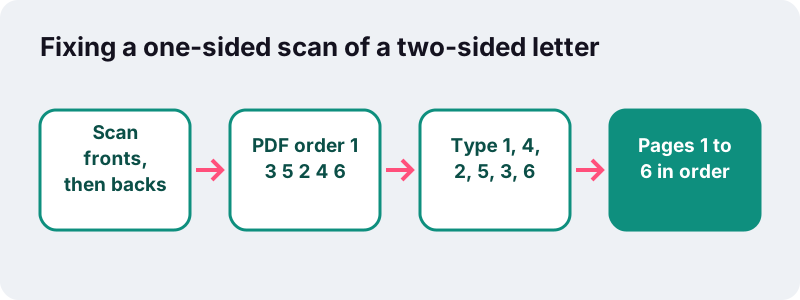
Use the Extract mode of the split tool and type the pages in the order they should end up. For a three-sheet letter scanned fronts first, the PDF reads 1, 3, 5, 2, 4, 6 and you type the positions 1, 4, 2, 5, 3, 6.
| Sheets | Order in the scan | Type in Extract pages |
|---|---|---|
| 2 sheets (4 pages) | front1, front2, back1, back2 | 1, 3, 2, 4 |
| 3 sheets (6 pages) | front1, front2, front3, back1, back2, back3 | 1, 4, 2, 5, 3, 6 |
| 4 sheets (8 pages) | fronts 1–4, then backs 1–4 | 1, 5, 2, 6, 3, 7, 4, 8 |
| 3 sheets, backs fed in reverse | front1, front2, front3, back3, back2, back1 | 1, 6, 2, 5, 3, 4 |
This works because Split PDF keeps pages in the order you type them in Extract mode. The numbers refer to positions in the current file, as shown on the preview grid, not to the numbers printed on the paper.
What is the fastest way to move a page a long distance?
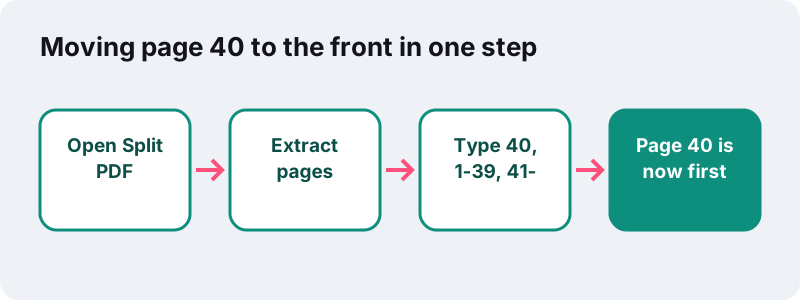
Type the new order instead of tapping. In Split PDF, choose Extract pages and enter something like 40, 1-39, 41-: page 40 comes first, then pages 1 to 39, then everything from 41 to the end.
8-, 1-7moves the last part of a document to the front.1, 3-10, 2sends page 2 to the very end of a 10-page file.5-1does not reverse pages: a backwards range is read as 1 to 5.- Leave no page out by accident: compare the page count of the result with the original.
Use whichever feels easier. The organizer is visual and forgiving; the typed order is precise and fast once the file runs to dozens of pages. Both write a fresh PDF and leave your original alone.
How do Mac and iPhone reorder PDF pages?
Apple's Preview app, on both the Mac and the iPhone, lets you drag thumbnails to new positions. That is the main thing it does that this organizer does not, and Apple's own help pages describe it.
“Touch and hold a thumbnail until menu options appear, then drag the page thumbnail above or below another one.”
On the Mac, Apple's guide reads: “Move pages in a PDF: Choose View > Thumbnails or View > Contact Sheet, then drag the pages to their new location.” Preview also inserts blank pages and pages from other files.
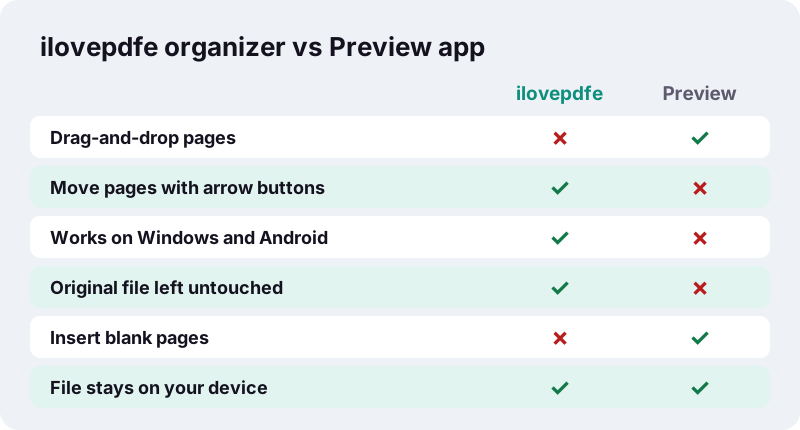
Where this page helps: Windows laptops, Android phones, school Chromebooks and shared computers where you cannot install anything. It also never edits the file in place; every save is a separate copy.
Can I organize PDF pages on Android or Windows?
Yes, through the browser. Open this page in Chrome or Edge, choose the PDF and use the arrows. In the help pages we read from Google and Microsoft, we found no built-in page reordering for PDFs on either system.
| System | What the official help describes | Reorder pages here? |
|---|---|---|
| Android | Chrome opens, searches and annotates PDFs on Android 12 and up | Yes, in Chrome |
| Windows | Microsoft Print to PDF creates PDFs from other formats | Yes, in Edge or Chrome |
| iPhone | Preview app: drag thumbnails to move pages | Yes, in Safari |
| Mac | Preview: drag pages in the thumbnail sidebar | Yes, in Safari or Chrome |
Sources for the table: Google's Chrome help for Android and Microsoft's note on Print to PDF, plus the Apple guides quoted above.
On a small phone screen, turn the phone sideways to fit more thumbnails per row. Fewer rows means fewer scrolls between the page you are moving and its destination.
Three real reordering jobs, start to finish
These examples show when the arrows are enough and when the typed order saves time. Use them as patterns when you organize PDF files of your own.
A 6-page meeting pack with the agenda in the wrong place
The agenda was saved as page 4. In the organizer, tap ← under it three times so it becomes the first page, check the grid, and save. Total: three taps and one download.
A 52-page tenancy file where the inventory must follow the lease
The lease is pages 1 to 18, the guarantor letter 19 to 21, and the inventory 22 to 52. To put the inventory straight after the lease, open Split PDF, choose Extract pages and type 1-18, 22-52, 19-21. Tapping arrows would take dozens of moves.
Exam scripts scanned in the wrong sequence
A teacher scans twelve one-page answer sheets and two land out of alphabetical order. Load the PDF here, find the two thumbnails by their labels, and nudge each one into place with a couple of taps. Then number the pages so marks can be recorded against them.
Does reordering change anything else in the file?
Only the sequence changes. Each page is copied into a new PDF with its content, fonts, images, size and orientation intact, so text stays selectable and nothing is compressed.
The Library of Congress describes PDF as a page-oriented format in which documents may contain text, images, graphics, annotations, metadata and links (format description). Because pages are separate objects, moving one does not alter its neighbours.
- Unchanged: how each page looks, its text layer, its rotation and its size.
- Rebuilt: the page sequence, written into a new file.
- Not kept: the bookmark sidebar of the original, if it had one; bookmarks pointed at the old structure.
- Your call: page numbers printed on the pages themselves stay as printed. Add fresh numbers afterwards if the old ones now look wrong.
Is my document private when I organize PDF pages here?
Yes. The thumbnails are drawn and the new file is written inside your browser tab; nothing is uploaded. When the job finishes, the page shows the time taken, the amount read and 0 bytes uploaded.
Browsers support this through the File API, which MDN describes as enabling web applications to access files and their contents once the user makes them available. The organizer only ever sees the single PDF you picked.
Many online PDF services upload documents to their servers for processing. For a contract, a medical file or a set of exam scripts, skipping that step is the simplest privacy measure there is.
What can't the organize PDF tool do yet?
It cannot drag pages, insert pages, combine files or open password-protected PDFs. Here is what to use instead:
| You want to | Use instead |
|---|---|
| Delete pages while reordering | Remove pages first, then organize |
| Add pages from another PDF | Merge PDF, then organize the result |
| Turn a sideways page | Rotate PDF, which can turn single pages |
| Move a page a long way | Split PDF, Extract pages, typed order |
| Open a locked PDF | Remove the password in your reader first |
The preview grid shows up to 200 pages. Pages after that are kept, in their original order at the end, but cannot be moved with the arrows; the typed-order method has no such cap.
A quick checklist before you save
Scan the grid once from first to last before pressing Save new order. It takes ten seconds and catches the usual slips.
- Is the first thumbnail the page a reader should see first?
- Do the labels run in the sequence you planned, for example 3, 1, 2, 4?
- Are both sides of each two-sided sheet next to each other?
- Is the appendix, if any, at the end?
- After downloading, does the page count match the original?
Then, if the document will be printed or discussed, add page numbers so the new order is easy to refer to.
Other tools for arranging documents
Organizing pages is usually one step among several. These tools share the same in-browser engine and work well in sequence.
Frequently asked questions
How do I reorder PDF pages for free?
Choose the PDF, tap ← or → under a thumbnail to move that page one place at a time, and press Save new order. It is free, with no account and no watermark.
Can I drag and drop to organize PDF pages?
Not yet. Pages move with the arrow buttons. For long moves, Split PDF's Extract mode lets you type the full new order, such as 10, 1-9, 11-.
Does it reduce quality when I organize PDF pages?
No. Pages are copied into a new file without re-compressing or converting anything, so they look exactly as before.
Is my PDF uploaded?
No. Thumbnails and the new file are created in your browser on your device. The result screen confirms 0 bytes uploaded.
Can I add blank pages or pages from another PDF?
Not in the organizer. To add pages from another document, merge the two PDFs first, then reorder the combined file here.
Can I delete pages while reordering?
Use Remove pages first to delete what you do not need, then bring the shorter file here to set the order.
What do the numbers under the thumbnails mean?
They are the original page numbers. They stay attached to each page as you move it, so you can always see where a page came from.
How do I fix fronts and backs scanned separately?
In Split PDF, choose Extract pages and type the interleaved positions, for example 1, 4, 2, 5, 3, 6 for three sheets scanned fronts first.
Is ilovepdfe the same as iLovePDF?
No. ilovepdfe is an independent site, not affiliated with iLovePDF, which is a separate company. The practical difference is that ilovepdfe processes files in your browser instead of uploading them.
Does it work on a phone?
Yes. Open the page in your phone's browser. Turning the phone sideways shows more thumbnails per row, which makes moving pages easier.
Sources
- Add, delete, rotate, move, or crop PDF pages in Preview on iPhone — Apple Support
- Add, delete, or move PDF pages in Preview on Mac — Apple Support
- Manage PDFs in Chrome (Android) — Google Chrome Help
- Print a schedule in Shifts (Microsoft Print to PDF) — Microsoft Support
- File API — MDN Web Docs (Mozilla)
- PDF (Portable Document Format) Family — Library of Congress
- PDF — Wikipedia