How to remove pages from a PDF
- Choose a PDF. Tap Choose a PDF or drop the file onto the box. Its pages appear as thumbnails.
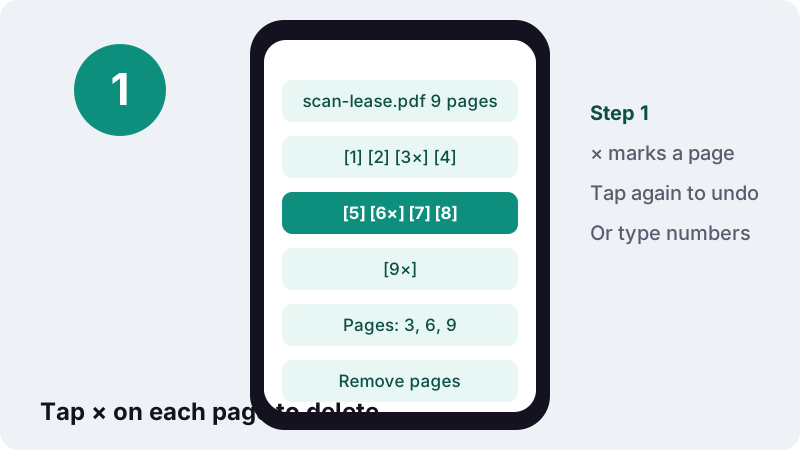
- Mark the pages. Tap × under each page to delete, or type numbers such as 2, 5-7 in the Pages box.
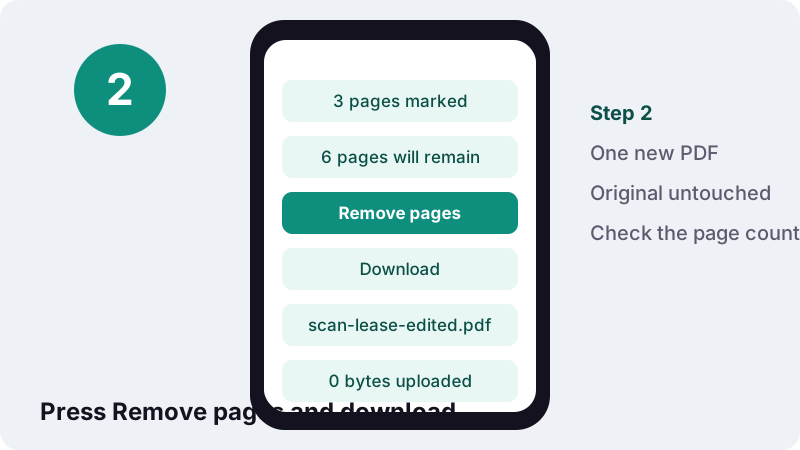
- Remove pages. Press Remove pages. Your browser writes the shorter PDF on your device.
- Download. Download the edited PDF and check the page count.
Remove pages from PDF files in three taps
To remove pages from PDF documents here, choose the file, tap × under every page you want gone (or type their numbers in the Pages box), and press Remove pages. You download a new file named after the original with -edited added.
Marked thumbnails are shaded so you can see the result before committing. Tap × a second time to bring a page back. Nothing changes in your original file; the tool always writes a separate copy.
Tap or type: how do I pick the pages to delete?
Use whichever is quicker. Tapping suits short files where you can see every page; typing suits long files or pages you already know by number. You can also combine both, and the tool deletes every page chosen either way.
| You type | Pages deleted | Good for |
|---|---|---|
| 1 | The first page | A fax cover sheet or a scanner header page |
| 2, 4, 6 | Three single pages | Blank backs in a two-sided scan |
| 10-14 | Pages 10 to 14 | An advertising insert in a downloaded statement |
| 31- | Page 31 to the end | Terms and conditions you don't need to send |
| -2 | Pages 1 and 2 | A title page and a table of contents |
Numbers refer to the page positions shown under the thumbnails, starting at 1, not to numbers printed on the pages. A document whose printed numbering starts at “iii” still begins at 1 here.
Why delete pages from a PDF at all?
Usually to send less: fewer pages to read, fewer pages to print, and fewer personal details passed around. Common situations people describe when they want to delete pages from PDF files:
- Blank pages in scans. Two-sided scanning of one-sided originals leaves an empty back after every page.
- Cover and separator sheets. Fax headers, print-shop banners or “this page intentionally left blank”.
- Extra pages in downloaded statements. Marketing inserts, terms, or months nobody asked for.
- Superseded pages. An old version of page 3 left behind after a correction was merged in.
- Pages meant for someone else. A shared report where each reader only needs their own section.
How do I remove blank pages from a scanned PDF?
Look at the preview grid, note the numbers of the empty pages, and type them in the Pages box. In a duplex scan of one-sided paper, blank backs are usually every second page, so the list looks like 2, 4, 6, 8.
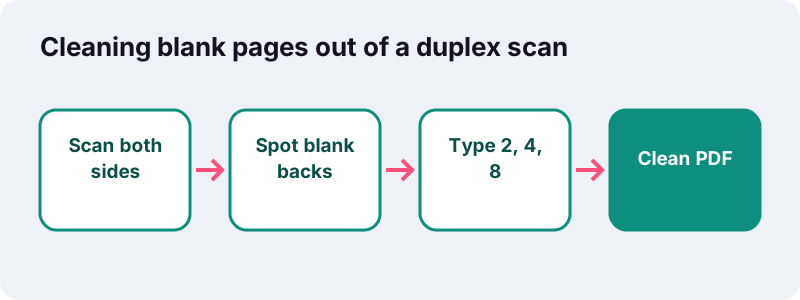
Not every back is empty in real life: a form may have small print on the reverse of page 3. That is why the grid matters. Check each shaded thumbnail before pressing the button, rather than trusting the even-numbers pattern blindly.
Scanners also produce “nearly blank” pages with a stray mark or a punch-hole shadow. They look empty on the thumbnail but count as pages, so they are removed in exactly the same way.
How do I remove pages from PDF statements, contracts and slides?
Find the pages in the preview, then type or tap them. These three examples show the exact input for documents people trim most often.
A 16-page bank statement with a 4-page leaflet at the back
The leaflet sits on pages 13 to 16. Type 13- in the Pages box; the open-ended range catches everything from page 13 to the end, even if the bank adds a page next month.
A signed contract returned with the courier's cover sheet
The courier's sheet is page 1 and a blank page follows the signatures on page 11. Tap × on both thumbnails, or type 1, 11. The 12-page file becomes 10 pages, starting with the contract's own first page.
Lecture slides exported with every animation step
Some presentation exports create one page per animation build, so slide 4 appears as pages 6, 7 and 8. Keep the last, complete version and delete the partial ones, here 6-7. Repeat for each animated slide, checking the thumbnails as you go.
Does deleting pages make the file smaller?
Yes. The tool copies only the pages you keep into a brand-new PDF, so the deleted pages' text, images and fonts are not in the result. The file shrinks roughly in proportion to what you removed.
In our tests, a text-heavy 5-page PDF of about 425 KB, with 4 pages removed, came out at about 86 KB: close to one fifth of the original, as expected for one page in five.
- Pages are not equally heavy. Deleting one photo page from a scanned file saves far more than deleting a page of plain text.
- Shared resources stay once. A font or logo used by the pages you keep is still included, so a 1-page result is never zero.
- Still too big? Trim first, then run the shorter file through Compress PDF for an upload limit.
That order matters for upload limits: removing pages nobody asked for costs no quality at all, whereas strong compression turns pages into images. Delete first, compress only if you still need to.
Is it safe to remove pages from PDF files that contain private details?
Yes. Nothing is uploaded, and the deleted pages are not carried into the new file. The PDF you download contains only the pages you kept, so a removed page with an ID number or a salary is not hidden somewhere inside it.
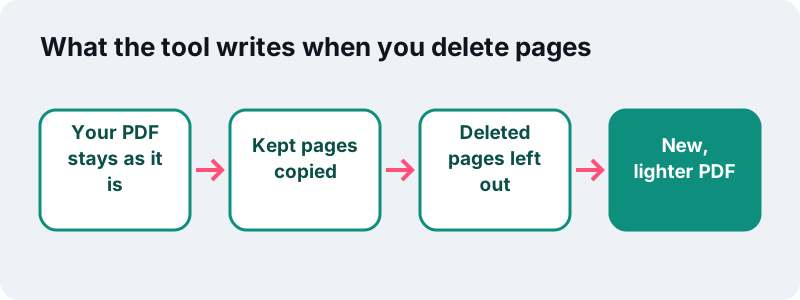
Your original file is untouched on your device. If the reason for trimming was privacy, remember to send the new -edited copy, not the original, and delete the original from shared folders if needed.
Deleting a page does not hide information on the pages you keep. If a kept page shows an account number, removing other pages will not mask it; that needs a redaction feature, which this site does not offer.
What stays the same on the pages I keep?
Everything. The remaining pages keep their text, fonts, images, size and rotation, and they stay in their original order. Nothing is compressed, flattened or re-drawn, so text you could select before stays selectable.
Apple notes a related point in its Preview guide for the Mac, about notes and highlights attached to the pages you delete:
“When you delete a page from a PDF, all the annotations on the page are removed as well.”
The same is true in general: comments and highlights belong to their page, so they disappear with it. Annotations on the pages you keep travel with them. The bookmark sidebar of the original, if it had one, is not carried into the new file.
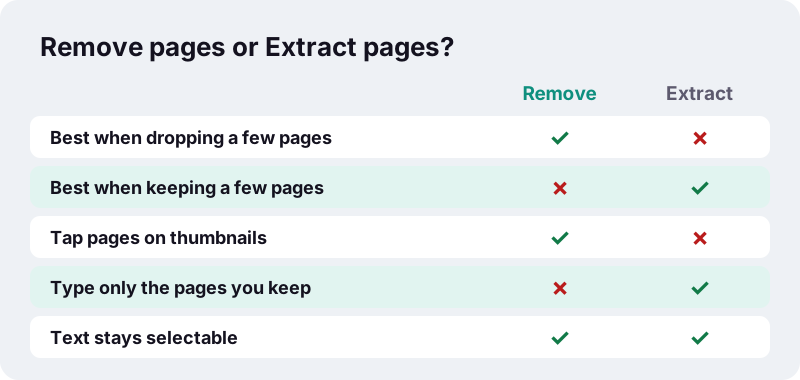
Remove pages or extract pages: which should I use?
Remove when you are dropping a few pages from many; extract when you are keeping a few pages out of many. Both live on this site and both run in the browser.
| Situation | Better tool | What to enter |
|---|---|---|
| 30-page file, 2 blank pages | Remove pages | Tap × on the two blanks |
| 30-page file, you need pages 4 and 5 | Split PDF, Extract pages | 4-5 |
| Long file, drop pages 3, 9 and 41 | Remove pages | 3, 9, 41 |
| Delete, then change the order | Remove pages, then Organize | Numbers, then arrows |
| Delete pages, then meet a size cap | Remove pages, then Compress | Numbers, then a target size |
After deleting, if the remaining pages need a new sequence, Organize pages moves them with arrows under each thumbnail.
How do iPhone, Mac, Android and Windows delete PDF pages?
Apple's Preview app can delete pages on both iPhone and Mac. On Android and Windows we found no built-in page deletion in the official help we read, so a browser tool like this one is the simple route there.
| Device | Built-in method (official help) | This page |
|---|---|---|
| iPhone | Preview: tap the page count, touch and hold a thumbnail, Delete Page | Safari |
| Mac | Preview: View > Thumbnails, select pages, press Delete | Safari or Chrome |
| Android | Chrome opens and annotates PDFs (Android 12+); no page deletion described | Chrome |
| Windows | Microsoft Print to PDF makes PDFs from other formats; no page deletion described | Edge or Chrome |
The iPhone steps come from Apple's Preview guide for iPhone, the Android details from Google's Chrome help. For Windows, Microsoft describes its virtual printer this way:
“Microsoft Print to PDF is an option that lets you create a PDF file from other file formats by using a printer.”
That printer turns documents into PDFs; for trimming a PDF that already exists, this page does the job in Edge or Chrome without installing anything.
Why does the tool refuse some requests?
It stops in three situations, each with a plain message, so you never download an empty or broken file.
| Message | Why | What to do |
|---|---|---|
| Pick at least one page to delete. | Nothing is marked and the box is empty | Tap × or type a page number |
| You can't delete every page. Keep at least one. | Every page is marked | Unmark at least one page |
| This PDF is password-protected… | The file is encrypted | Remove the password in your reader first |
If the list you type contains no real page, for example 40 in a 12-page file, nothing matches and the first message appears. Check the page count shown when the file loads.
What about very long PDFs?
They work, with one adjustment: the preview grid shows the first 200 pages. To delete pages beyond that, type their numbers in the Pages box, such as 250-260; the page tells you how many pages are not shown.
Because the job runs on your device, a long, image-heavy scan takes longer on a phone than on a computer. Ordinary text documents of a few hundred pages are not a problem on recent hardware.
Related tools to finish the job
Once you remove pages from PDF files, a few follow-up steps are common: renumbering, rotating a sideways scan, or attaching the result to another document.
- Join the trimmed file with others using Merge PDF.
- Renumber what is left with Add page numbers.
- Fix sideways scans with Rotate PDF.
Frequently asked questions
How do I delete pages from a PDF for free?
Choose the PDF, tap × under each page you want to delete or type their numbers, and press Remove pages. Download the new file. No account and no watermark.
Can I remove several pages at once?
Yes. Tap × on as many thumbnails as you like, or type a list such as 2, 5-7, 12. All marked pages are removed in one go.
Is my PDF uploaded when I remove pages?
No. The file is read and edited in your browser on your device. The result screen confirms 0 bytes uploaded.
Does the PDF get smaller after removing pages?
Yes. Only the pages you keep are copied into the new file, so it shrinks roughly in proportion to what you removed. In our tests a 5-page, 425 KB text PDF with 4 pages removed came out at about 86 KB.
Can I undo a page I marked by mistake?
Yes. Tap × on that page again before pressing Remove pages. After downloading, your original file is still unchanged, so you can start again.
Can I delete every page except one?
Yes, as long as at least one page remains. For keeping just one or two pages, Extract pages in Split PDF is usually quicker.
Does removing pages affect the remaining pages?
No. The pages you keep look exactly as before, stay in the same order and keep selectable text.
Can I remove pages from a password-protected PDF?
Not directly. Remove the password in your PDF reader first, save an unlocked copy, then load that copy here.
Is ilovepdfe the same as iLovePDF?
No. ilovepdfe is an independent website and is not affiliated with iLovePDF, a separate company. The practical difference is that ilovepdfe processes files in your browser instead of uploading them.
Does it work on iPhone and Android?
Yes. Open the page in Safari or Chrome on your phone, choose the PDF, mark the pages and download the shorter file.
Sources
- Add, delete, or move PDF pages in Preview on Mac — Apple Support
- Add, delete, rotate, move, or crop PDF pages in Preview on iPhone — Apple Support
- Manage PDFs in Chrome (Android) — Google Chrome Help
- Print a schedule in Shifts (Microsoft Print to PDF) — Microsoft Support
- File API — MDN Web Docs (Mozilla)
- PDF (Portable Document Format) Family — Library of Congress
- PDF — Wikipedia